By: TechLoomyFun Editorial Team
If an Android notification appears several minutes after the message was sent, the problem can be surprisingly difficult to diagnose.
You may see the notification immediately when you open the app, but not while the phone is sitting in your pocket. Or perhaps WhatsApp messages arrive instantly while Gmail, Teams, or another application stays silent until you wake the screen.
That pattern matters.
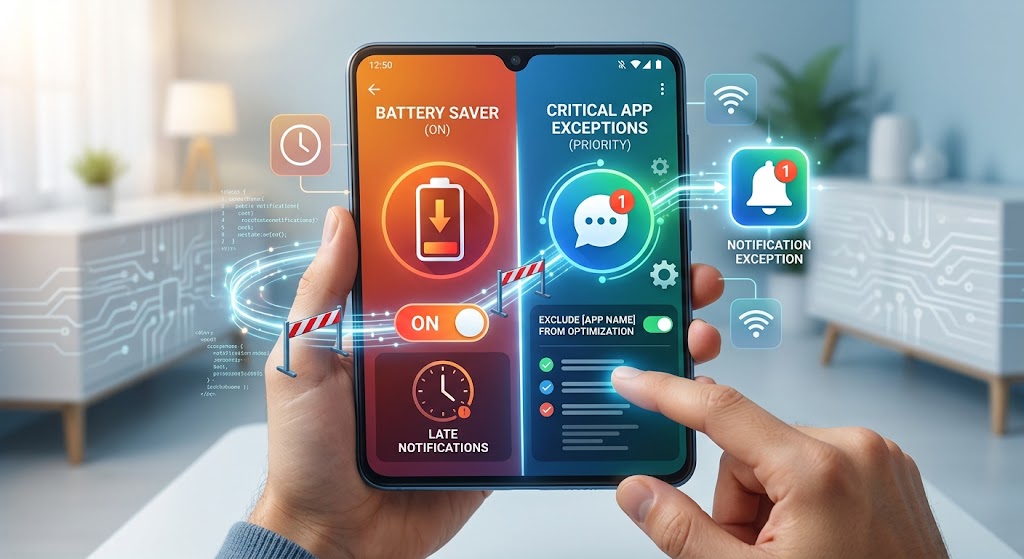
Delayed notifications are not always caused by Battery Saver itself. Android and phone manufacturers use several battery-management mechanisms that can restrict background activity, while individual apps can also have their own notification, battery, data, or background restrictions. Google confirms that Battery Saver can delay low-priority notifications, while Adaptive Battery can reduce background activity and may delay notifications in some situations.
The good news is that you usually don’t need to disable every battery-saving feature just to make one important application deliver notifications promptly.
The better approach is to find which restriction is affecting the app and adjust only that app when your phone provides the option.
First, Find Out What Kind of Notification Delay You Have
Before changing battery settings, test the problem.
Send yourself a message or ask someone to send you a test message through the affected app. Lock the phone and leave it alone for several minutes.
Then compare what happens.
If the notification arrives immediately while the screen is on but becomes delayed after the phone has been idle, background activity or battery management becomes more suspicious.
If notifications are delayed only for one application, investigate that application first.
If notifications from nearly every application are late, look at system-wide settings such as Battery Saver, Do Not Disturb, connectivity, background data, or a recent Android update.
This distinction saves time because there is little reason to change five system settings when only one application is affected.
Check Whether Battery Saver Is Actually Active
Start with the obvious possibility.
Open your phone’s quick settings panel and check whether Battery Saver, Power Saving, or a similarly named mode is currently active.
Google explains that Battery Saver can limit background activity and that low-priority notifications may be delayed. On Pixel phones, for example, Battery Saver can prevent apps from running in the background unless battery optimization is changed for an app.
However, the solution isn’t necessarily to turn Battery Saver off permanently.
If you need Battery Saver to remain enabled, continue with the app-specific checks below.
The goal is to determine whether an important messaging or communication app is being restricted more aggressively than necessary.
Make Sure the App’s Notifications Are Allowed
A surprisingly simple notification permission can cause confusion.
Go to something similar to:
Settings → Notifications → App notifications → [Affected app]
Make sure notifications are enabled.
Depending on your Android version, you may also see individual notification categories or channels. An app can have notifications enabled generally while a particular type of notification is disabled or configured differently.
Google’s Pixel documentation recommends checking an app’s notification settings when alerts aren’t appearing.
For example, a messaging app might have separate controls for:
- direct messages
- group messages
- calls
- reminders
- promotional notifications
- background activity
If only one type of alert is delayed or missing, examine that notification category rather than changing the phone’s entire notification system.
Check the App’s Battery Setting Instead of Disabling Battery Saving Everywhere
This is one of the most useful approaches when you want to preserve battery life.
On many Android phones, open:
Settings → Apps → [Affected app] → Battery
You may see choices such as:
- Unrestricted
- Optimized
- Restricted
The exact options and names depend on the manufacturer and Android version.
Google’s current Pixel documentation recommends keeping normal battery optimization enabled for apps generally, while allowing an individual app’s background usage to be adjusted when necessary.
If an application needs timely notifications, check whether its battery setting is unusually restrictive.
The important point is that you don’t have to disable battery optimization for every application.
You can investigate the specific app that matters.
For a messaging application that you depend on for time-sensitive alerts, an app-specific battery setting may be a more sensible compromise than disabling the phone’s battery-management features globally.
Don’t Automatically Disable Adaptive Battery
Adaptive Battery can be confusing because it is designed to reduce background activity, yet many troubleshooting guides immediately tell users to switch it off.
That is too broad a recommendation.
Google says Adaptive Battery learns how you use your apps and can reduce activity for apps you use less often. Google also notes that it may reduce performance and delay notifications in order to extend battery life.
That does not mean Adaptive Battery should automatically be disabled.
If only one application is affected, investigate that application’s battery and background settings first.
If notifications from many applications are delayed despite appropriate app settings, then Adaptive Battery and other system-level battery management become more relevant things to test.
Change one setting at a time so you can tell whether it actually made a difference.
Check Whether the App Has Been Put to Sleep
This is particularly important on Samsung Galaxy phones.
Samsung’s battery-management system can place applications into sleeping or deep-sleep states. Samsung states that deep-sleeping apps do not run in the background and that notifications and app updates may not arrive until the app is opened.
On supported Galaxy devices, look under something similar to:
Settings → Device care → Battery → Background usage limits
Check the sleeping and deep-sleeping app lists.
If your messaging or work application has been placed into deep sleep, that provides a strong explanation for delayed notifications.
Samsung provides an option called Never auto sleeping apps on supported devices. You can add applications that need to remain available in the background.
This is a good example of why Android troubleshooting can’t always use one universal menu path.
A Pixel, Galaxy, Motorola, Xiaomi, OnePlus, or other Android phone may handle background restrictions differently.
Check Data Saver and Background Data
Notifications depend on more than battery settings.
An application may also need background network access to receive information while you’re not actively using it.
Look for:
Settings → Network & internet → Data Saver
The exact location varies.
If Data Saver is enabled, check whether the affected application is allowed to use background data.
This is particularly worth investigating if notifications arrive correctly over Wi-Fi but become delayed on mobile data, or if the opposite happens.
Use the network as a diagnostic test
Try this simple comparison:
Test 1: Lock the phone while connected to Wi-Fi.
Test 2: Repeat the test while using mobile data.
If the delay happens only on one connection, the problem may not be related to battery optimization at all.
It could involve the network, Data Saver, a VPN, DNS configuration, carrier connectivity, or the application’s connection to its notification service.
Don’t change battery settings when the evidence is pointing toward a network problem.
Check Do Not Disturb and Other Modes
A notification can technically arrive on the phone without producing the sound, vibration, or visual alert you expect.
Check:
Settings → Notifications → Do Not Disturb
Also look for features such as:
- Bedtime mode
- Driving mode
- Focus modes
- scheduled quiet periods
- work profiles
- manufacturer-specific modes
Google specifically lists Do Not Disturb as one setting to check when alerts aren’t appearing as expected.
If the notification is actually sitting in the notification shade but you didn’t hear or see it immediately, the problem is different from a notification that doesn’t reach the phone until much later.
That distinction is important.
Check Whether the App Is Paused Because You Rarely Use It
Some Android phones include unused-app management.
The operating system may restrict applications that haven’t been used recently.
Open the affected app’s information page and look for settings related to:
Pause app activity if unused
or similar wording.
If an application is important for notifications but you rarely open it, review whether Android has applied unused-app restrictions.
Again, don’t disable these protections for every app.
They exist for a reason. Focus on applications where timely background activity is genuinely important.
Update the App and Android
If notifications suddenly became unreliable after months of working normally, check for updates.
Open Google Play and look for an update for the affected application.
Then check:
Settings → System → Software update
The exact menu can differ by manufacturer.
An update can fix bugs, compatibility problems, or background-service issues. On the other hand, a recent update can occasionally introduce a new problem, so pay attention to timing.
If notifications became delayed immediately after a major system or app update, that is useful information to keep in mind when deciding what to investigate next.
Restart the Phone After Changing Notification Settings
After changing notification or background settings, restart the phone.
A restart gives Android a chance to reload background services and apply the new configuration cleanly.
Don’t treat the restart as proof that the problem has been solved, though.
Test the notification again after the phone has been idle for a reasonable period.
A notification that arrives instantly immediately after restarting doesn’t necessarily mean the underlying issue is gone.
The real test is whether it continues arriving on time after the phone has been locked and unused.
Test One App Before Changing Everything
Suppose WhatsApp notifications are late but Gmail notifications arrive normally.
Don’t change the entire phone.
Instead, investigate WhatsApp first.
Check:
WhatsApp notifications → Battery usage → Background usage → Data access → sleeping/unused-app settings
Then repeat the notification test.
If WhatsApp starts working normally while other apps remain unchanged, you have strong evidence that the problem was application-specific.
This approach also protects battery life because you aren’t giving every application unrestricted background access.
What If Notifications Arrive Only When You Open the App?
This is one of the strongest clues you can get.
Imagine someone sends you a message at 10:00.
You don’t receive a notification.
At 10:20, you open the app.
Several messages suddenly appear.
That pattern suggests the application may not have been maintaining the expected background connection or may have been prevented from running in the background.
Possible causes include:
- aggressive battery restrictions
- deep sleeping
- background data restrictions
- network problems
- an application bug
- account or synchronization problems
- a manufacturer-specific power-management feature
Start with the affected application’s battery and background settings rather than immediately changing system-wide battery controls.
What If Every App’s Notifications Are Delayed?
If Gmail, WhatsApp, Signal, calendar alerts, and other applications are all affected, don’t spend an hour adjusting each app individually.
Look for a system-level cause.
Check:
Battery Saver
Do Not Disturb
Data Saver
Wi-Fi/mobile connectivity
Automatic date and time
Recent Android update
Recent system configuration changes
If everything became unreliable at approximately the same time, the common factor is more important than any individual application.
A useful test is to send yourself notifications through multiple services while the screen is locked.
Record the approximate send time and arrival time.
You don’t need sophisticated tools. A simple note such as:
Message sent: 10:15
Notification received: 10:15
or
Message sent: 10:15
Notification received: 10:28 after opening the app
can reveal a pattern.
Don’t Clear Google Play Services Data as Your First Fix
You may find online guides recommending that you clear data from Google Play services or other system components.
That should not be your first move.
Google Play services is an important part of Android, and changing data associated with system services can have wider consequences than changing one application’s cache.
Start with ordinary notification permissions, battery restrictions, background data, connectivity, and app updates.
If the problem persists across many applications and normal troubleshooting has failed, use your phone manufacturer’s official support or diagnostic process rather than following an obscure system-modification guide.
Clear the Affected App’s Cache When Appropriate
If one application is behaving strangely, clearing its cache can be worth trying.
A common path is:
Settings → Apps → [App] → Storage → Clear cache
The exact wording varies.
Clearing cache removes temporary files. It is different from clearing storage or app data.
Don’t tap Clear storage/data casually.
That option can remove locally stored application information and may require you to sign in again or restore information from the application’s own backup system.
If you’re dealing with a messaging application, check its backup situation before taking any action that could remove local data.
What to Do If the First Fix Does Not Work
If changing the affected app’s battery setting doesn’t solve the problem, don’t immediately disable every battery-saving feature.
Move to the next diagnostic test.
If notifications work while the screen is on but not when it is locked
Investigate background battery restrictions, sleeping apps, Data Saver, and network behavior.
If notifications fail only on mobile data
Investigate mobile connectivity and background data restrictions.
If only one app is affected
Focus on that application’s notification permissions, battery setting, cache, updates, and account synchronization.
If every app is affected
Look for a system-level setting, network issue, software update problem, or manufacturer-specific power-management behavior.
If notifications arrive only after opening the app
Pay particular attention to background execution and network restrictions.
This approach is much more useful than repeatedly turning settings on and off without recording the result.
Keep Battery Saving Without Sacrificing Important Notifications
The practical compromise is simple.
You don’t necessarily have to choose between:
“Maximum battery saving”
and
“Notifications always work.”
Instead, identify the few applications for which immediate notifications genuinely matter.
A messaging app, authentication application, work communication tool, or security-related application may deserve different treatment from an app you open once every few months.
Keep normal battery optimization for ordinary applications where it works well.
For the few apps where delayed notifications cause a real problem, investigate their individual background and battery settings.
On Samsung devices, this can mean removing important apps from sleeping or deep-sleep lists. Samsung specifically provides a Never auto sleeping apps option for this purpose on supported devices.
On Pixel phones, Google provides per-app battery settings while recommending that optimization remain enabled generally.
The exact controls depend on your phone.
When You Should Contact the Manufacturer or App Developer
If notifications remain severely delayed across multiple applications after you’ve checked the relevant system settings, don’t keep changing random battery controls.
At that point, the problem could involve:
- an Android software bug
- a manufacturer-specific power-management issue
- network connectivity
- Google services
- the application’s own notification system
- an account synchronization problem
If the issue started immediately after a system update and affects many applications, make a note of the Android version and phone model before contacting support.
If only one application is affected, check the application’s official support documentation as well.
The more specific information you can provide, the easier it is for support to distinguish a phone-wide problem from an application-specific one.
What Not to Do
Don’t disable battery optimization for every application just because one app’s notifications are late.
Don’t install a third-party “notification fixer” or “RAM booster” without understanding what permissions it requires.
Don’t clear system application data as your first troubleshooting step.
Don’t assume every notification delay is caused by Battery Saver.
And don’t sacrifice your phone’s entire battery-management system when only one application needs attention.
The goal is to find the smallest change that fixes the actual problem.
Frequently Asked Questions
Can Android battery saving delay notifications?
Yes. Battery-saving mechanisms can restrict background activity, and Google states that Battery Saver may delay low-priority notifications.
Do I need to turn off Battery Saver to receive notifications immediately?
Not necessarily. If only one or a few applications are affected, check their individual battery, background, notification, and data settings first. The available controls depend on the Android version and manufacturer.
Why do notifications appear as soon as I open the app?
This can indicate that the app wasn’t maintaining the expected background activity or network connection while the phone was idle. Battery restrictions, sleeping apps, background data restrictions, connectivity, or an app-specific problem can all be possibilities.
Why are Samsung notifications delayed until I open the app?
One possible cause is that the application has been placed into a sleeping or deep-sleep state. Samsung states that deep-sleeping apps don’t run in the background and may not provide notifications until the app is opened.
Should I disable Adaptive Battery to fix delayed notifications?
Not automatically. Google recommends keeping Adaptive Battery enabled for normal battery management, while individual app battery settings can be adjusted when necessary.
Authoritative Sources
For the published article, the strongest references for this topic are official Android, Google Pixel, and Samsung documentation.
Google explains that Battery Saver can limit background activity and delay some notifications.
Google’s Pixel documentation explains Adaptive Battery, per-app battery usage, and background optimization.
Samsung’s current support documentation explains that sleeping and deep-sleeping apps can delay notifications and provides controls for keeping selected apps from automatically sleeping.
Conclusion
Late Android notifications are frustrating, especially when you discover the messages were already waiting for you but your phone didn’t alert you.
The important thing is not to assume that Battery Saver is automatically the enemy.
First determine whether the delay affects one application or the entire phone. Then check notification permissions, app-specific battery settings, sleeping or deep-sleeping apps, background data, connectivity, and system modes such as Do Not Disturb.
If you can keep battery-saving features enabled while giving only an important application the background access it actually needs, you get a better compromise: reasonable battery life without unnecessarily sacrificing timely notifications.
And if changing one app’s settings doesn’t help, don’t keep guessing. Use the timing of the notifications as evidence and move to the next possible cause.