Author: TechLoomyFun Editorial Team
A security alert can be real, but urgency should make you investigate, not panic
A message saying “Your account has been compromised” can trigger an immediate reaction.
You may feel that you need to click the security link, confirm your identity, change your password, or call the number in the email before something worse happens.
That reaction is exactly what many phishing attacks are designed to create.
Urgency itself does not prove that an email is fake. Real services sometimes send genuine security alerts about unusual sign-ins, password changes, or other account activity. Google, for example, says it sends security alerts when it detects important account actions or suspicious activity.
The important question is different:
Is the message giving you useful information that you can verify independently, or is it trying to make you act before you have time to check it?
That distinction can help you avoid clicking a fake security link while still responding quickly when a genuine account problem exists.
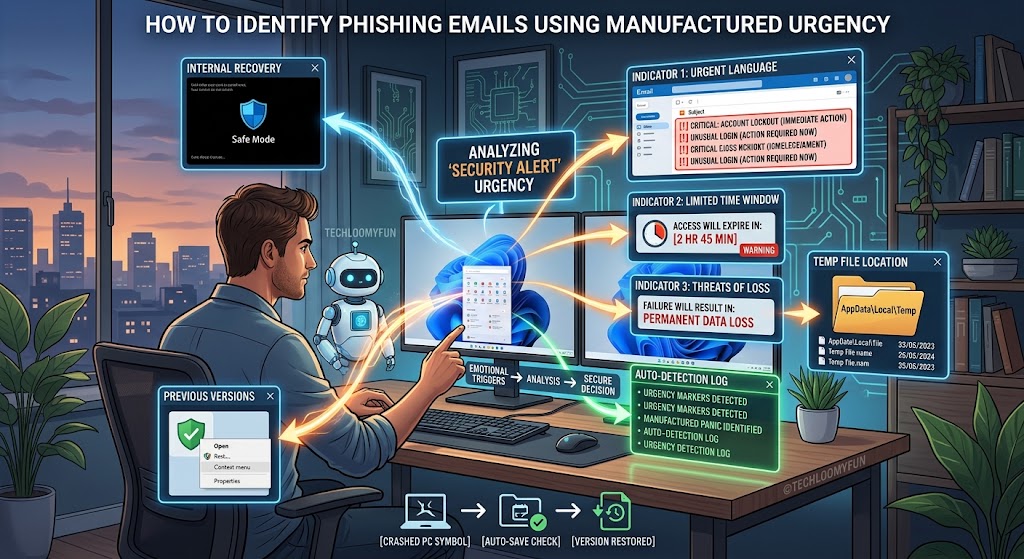
The first warning sign is pressure to act immediately
Look carefully at the wording.
A suspicious message may tell you that your account will be:
- Locked
- Deleted
- Suspended
- Permanently restricted
- Charged
- Closed
- Reported
- Compromised further
unless you do something immediately.
Microsoft identifies urgent calls to action and threats as common signs of phishing. CISA similarly advises users to be cautious about messages that urge them to act immediately.
The problem is not the word urgent by itself.
The problem is when urgency is being used to stop you from asking basic questions.
A legitimate security event can wait a few moments while you open the service independently and verify what happened.
Ask yourself what the email wants you to do
Before clicking anything, identify the requested action.
Is the message asking you to:
- Click a login button?
- Confirm your password?
- Enter a verification code?
- Download an attachment?
- Call a phone number?
- Approve a login?
- Confirm payment information?
- Unlock an account?
- Verify your identity?
- Install software?
- Reply with personal information?
The more sensitive the requested action, the more important it is to verify the message independently.
Google warns users not to respond to suspicious requests for private information and advises against entering a password after following a link in a message.
Separate the alert from the action
This is one of the most useful habits to develop.
A security email might contain a legitimate-looking statement such as:
“We detected a sign-in from a new device.”
That does not mean the button underneath the statement is safe.
An attacker can copy the appearance and wording of a real security notification and place a fake login page behind the button.
Instead of asking:
“Does this email look real?”
ask:
“How can I verify this alert without using anything inside the email?”
That question changes the entire process.
Do not use the email’s link to investigate the alert
If you receive a message saying your account needs immediate attention, open the service another way.
For example, if the message claims to be from your email provider, open the provider’s official app.
If it claims to be from a shopping service, open the service’s app or type its known website address yourself.
If it claims to be from your bank, use the official banking app or a trusted contact method you already know.
Microsoft recommends going directly to an organization’s website rather than clicking a link in a suspicious message.
This is safer because the email no longer controls the path you take to investigate the alleged problem.
Look at the sender’s full email address
Do not rely only on the name displayed at the top of the message.
An email can display a familiar company name while being sent from a completely different address.
For example, an attacker might make the sender name appear as:
Microsoft Security
while the actual address belongs to an unrelated domain.
Google recommends checking whether the sender’s email address and displayed sender name match. Microsoft also warns about mismatched domains and subtle changes to legitimate domain names.
Look carefully at the complete address.
A small spelling difference can matter.
For example, a fraudulent domain might use a character substitution or an extra word that makes it resemble a legitimate company.
Do not assume that a familiar logo or display name proves anything.
Be careful with lookalike domains
Attackers sometimes register domains designed to resemble legitimate ones.
The difference may be difficult to notice at a glance.
A message may appear to reference a well-known service while the actual link goes somewhere else.
Microsoft specifically warns about subtle domain tricks, including misspelled domains and characters that resemble letters in legitimate addresses.
On a computer, you can often hover over a link without clicking it to inspect its destination.
On a phone, long-pressing a link may display its destination, depending on the email application.
However, you do not need to inspect a suspicious link at all if you can independently open the official service.
That is often the safer option.
Watch for a countdown or artificial deadline
Some phishing messages create a very specific deadline:
“You have 30 minutes.”
“Verify within 2 hours.”
“Failure to respond before midnight will result in permanent suspension.”
A deadline can make the message feel more official.
It can also make you stop thinking.
A real service may have legitimate deadlines, but a countdown inside an unexpected security email should make you more cautious, not less.
CISA advises people to think before acting when a communication pushes them to respond immediately.
Look for fear-based language
Phishing messages often focus on consequences rather than useful details.
For example, instead of clearly explaining:
What happened
When it happened
Which device was involved
What you should verify
the email may repeatedly emphasize what will happen if you do nothing.
That imbalance is worth noticing.
A genuine security notification can contain serious information without relying entirely on fear.
Google’s guidance specifically notes that scammers use emotion and urgency to encourage people to act without thinking.
Check whether the email gives enough information to verify the event
A genuine security alert often gives you some useful context.
For example, Google says its security alerts can provide information such as the device type, time, and location associated with an event.
That does not mean every legitimate service will show exactly the same information.
But if an email says only:
“Someone hacked your account. Click here immediately.”
without giving enough information to understand what supposedly happened, slow down.
Ask yourself whether the alleged event can be confirmed inside the account itself.
Be suspicious if the message asks for your password
An unexpected security email asking you to reply with your password is a major warning sign.
You should never send a password through email.
Google states that it does not ask users for passwords through email, messages, or phone calls.
The same principle applies to verification codes and other sensitive authentication information.
A message claiming to be from technical support should not automatically be trusted simply because it uses security-related language.
Be especially careful with verification codes
A security alert may say:
“Your verification code is below. Reply with this code to cancel the login.”
That is dangerous.
A verification code can be part of a legitimate authentication process, but giving the code to another person may help them complete a login.
If you receive a code for an action you did not initiate, do not send it to someone who asks for it.
Google specifically warns that scammers may attempt to obtain verification codes or persuade users to approve fraudulent login prompts.
Watch for unexpected phone numbers
A fake security email may tell you to call a number immediately.
This can be particularly convincing because talking to a real person can make the situation feel legitimate.
The problem is that the person answering the number may be the scammer.
Do not use the phone number supplied in an unexpected security email to verify the email.
Instead, find the organization’s contact information through its official website, app, statement, card, or another trusted source.
Microsoft recommends using official contact information rather than contact details supplied by a suspicious message.
Do not assume good grammar means the email is genuine
Older phishing emails were often easy to spot because they contained obvious spelling mistakes.
That is no longer a reliable test.
A convincing phishing message can have polished grammar, professional formatting, logos, and realistic wording.
Microsoft still lists spelling and grammar problems as possible warning signs, but they are only part of the overall assessment.
A perfectly written email can still be fraudulent.
A badly written email can occasionally be legitimate.
Look at the entire situation rather than relying on one clue.
Check whether the message was expected
Context matters.
If you recently changed your password and receive a security confirmation from that service, the message may make sense.
If you have not used the service for months and suddenly receive an alarming message saying your account will be deleted in ten minutes, slow down.
Ask:
Did I recently perform the action this email describes?
If the answer is no, verify it independently.
Be careful with messages that use familiar branding
A fake security alert can copy:
- Company logos
- Fonts
- Colors
- Footer text
- Legal disclaimers
- Security wording
- Button designs
This can make the message look remarkably convincing.
Visual appearance should therefore be treated as supporting evidence, not proof.
The sender, destination, requested action, and actual account activity matter more.
Check the account directly
This is the strongest practical test.
Suppose you receive:
“Someone signed into your account from another country.”
Do not click the email button.
Open the service independently.
Then check its:
Recent activity
Security activity
Devices
Sessions
Login history
Account security
The exact name depends on the service.
Google, for example, provides account security areas where users can review recent security events and investigate unfamiliar activity.
If the account shows no corresponding event, the email deserves additional suspicion.
If the account does show the event, follow the service’s official security process rather than returning to the email.
Understand that a real alert can still be followed by a fake message
This is an important edge case.
Suppose you genuinely received a security alert from a service.
An attacker could still send you a second message pretending to help you resolve the problem.
That second message might say:
“Our security team has detected unauthorized access. Call this number immediately.”
The first alert being genuine does not automatically make the second message genuine.
Verify every action independently.
What if the email looks completely legitimate?
Do not let appearance force the decision.
If you are unsure, do nothing through the email.
Open the official service directly and check the account.
This gives you a safe way to investigate without needing to decide whether every part of the email is authentic.
Google recommends going directly to the relevant website when a security email might be fake rather than entering account information after clicking the email’s link.
What to do if the alert turns out to be genuine
If you independently confirm that the security event actually happened, follow the provider’s official security instructions.
Depending on the situation, that might include:
- Changing the password
- Signing out unfamiliar devices
- Reviewing recent account activity
- Removing unfamiliar recovery methods
- Checking connected applications
- Enabling multifactor authentication
- Contacting official support
For Google accounts, for example, an unfamiliar security event can be reviewed from the account’s security settings, where Google provides steps to secure the account.
The important point is that you reached those controls independently.
What to do if the email is fake
Do not reply to it.
Do not click its links.
Do not download attachments.
Do not call the number provided in the message.
Report the message using the email service’s phishing-reporting feature when available, then delete it.
Google provides a Report phishing function in Gmail, while Microsoft provides phishing-reporting tools in Outlook.
If you already clicked the link but did not enter information, close the page and avoid interacting with it further.
If you entered your password, payment information, verification code, or other sensitive information, treat the situation differently and secure the affected account immediately through its official website or app.
A simple five-question test
When a security alert tries to make you act quickly, ask yourself these five questions:
1. Did I expect this message?
If not, slow down.
2. Is it creating fear or an artificial deadline?
If yes, slow down further.
3. Does it want sensitive information or a login?
Treat that as a high-risk request.
4. Can I verify the alleged problem without using the email?
If yes, do that instead.
5. Does the official account actually show the security event?
If it does, use the official account controls to respond.
If you cannot answer these questions confidently, there is no reason to rush.
What not to do
Do not let a countdown pressure you into clicking.
Do not reply with your password.
Do not send a verification code.
Do not approve a login you did not initiate.
Do not call an unexpected security number.
Do not install software because an email says your device is infected.
Do not assume the logo proves authenticity.
Do not trust a link merely because the visible text looks familiar.
Do not let someone on a phone call guide you through security settings while you are under pressure.
The safest response to an unexpected security alert is often surprisingly simple:
Stop. Verify independently. Then act.
When to seek additional help
Contact the service’s official support team if you cannot determine whether an account event is legitimate, you see unfamiliar account activity, or you believe someone may already have accessed your account.
If the account belongs to your employer or school, follow its IT or security reporting process instead of attempting to handle a suspected compromise alone.
If you entered credentials into a suspected phishing page, change the affected password through the official service and check for other account activity. If that password was reused elsewhere, those accounts should also be secured.
FAQs
Does an urgent security email automatically mean it is a scam?
No. Real services can send genuine security alerts about unusual activity. The warning sign is when urgency is combined with suspicious links, requests for sensitive information, threats, or instructions that prevent you from independently verifying the event.
Should I click the security link to see whether the email is real?
Preferably not. Open the service’s official app or website independently and check the account’s security activity. Google and Microsoft both recommend avoiding links in suspicious messages.
What if the sender’s email address looks correct?
That alone is not enough. Check the complete message, authentication indicators where available, links, requested actions, and the account itself. A convincing sender name or address should not replace independent verification.
What if I already clicked the link?
If you only opened the page and did not enter information or download anything, close it and investigate the account independently. If you entered a password, verification code, financial information, or other sensitive information, secure the affected account immediately through its official service.
Why do scammers use urgency?
Urgency reduces the time available for you to question the message, check the sender, contact someone you trust, or visit the real service independently. Microsoft and CISA both identify pressure to act immediately as a common phishing tactic.
Conclusion
A security alert deserves attention, but it does not deserve blind trust.
The most useful habit is to separate the warning from the action. Read the message, but do not let the message decide how you investigate it.
Check the sender, look for pressure tactics, examine what information the email wants, and be cautious with links, attachments, phone numbers, passwords, and verification codes.
Then open the relevant service yourself and check whether the alleged security event actually appears in your account.
If it does, respond using the official security controls. If it does not, treat the message with suspicion and report it.
The few extra seconds spent verifying an alert can be far more valuable than the few seconds saved by clicking immediately.
Authoritative sources for editorial verification
- Google: Avoid and report phishing emails.
- Google: Respond to security alerts.
- Microsoft: Protect yourself from phishing.
- Microsoft: Phishing and suspicious behavior in Outlook.
- CISA: Phishing guidance and recognizing urgency tactics.