Author: TechLoomyFun Editorial Team
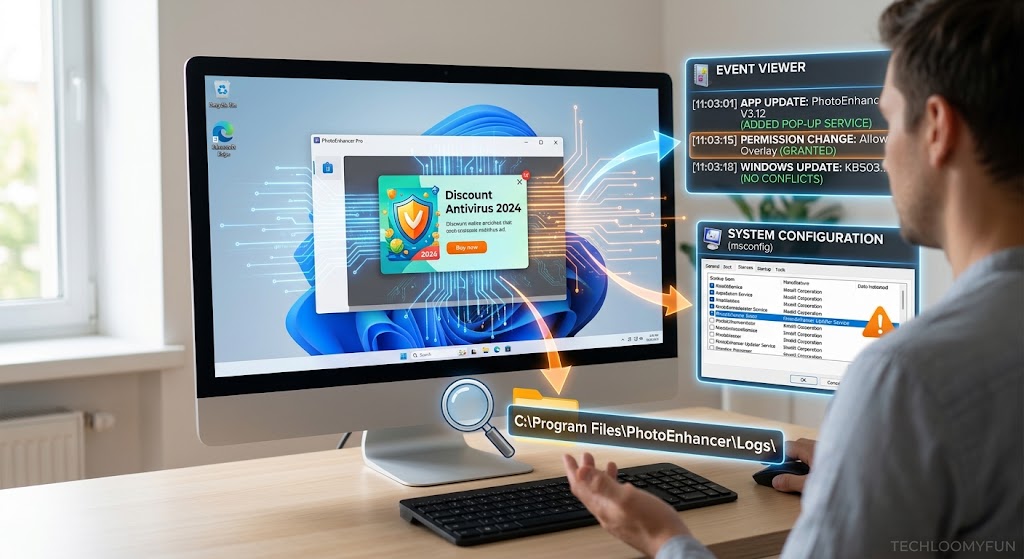
When a Windows app suddenly starts showing pop-ups that were not appearing before, it is tempting to blame Windows itself or immediately uninstall the program. That can work sometimes, but it does not tell you what actually changed.
A better approach is to compare what was different before the pop-ups began.
The change could have been an app update, a Windows update, a new startup setting, a notification permission, a changed application preference, a newly installed companion program, or even a problem with the app itself. Windows provides several places where you can investigate these changes before removing anything.
The goal is not simply to stop the pop-ups. The goal is to identify what changed, when it changed, and whether that change is actually responsible.
First, Identify What Kind of Pop-Up You Are Seeing
Before changing settings, look closely at the pop-up.
This matters because a normal Windows notification is different from an advertising window created directly by an application.
Windows notifications can appear as banners and can also be viewed in the notification center. Microsoft allows notification settings to be controlled separately for individual apps.
If the message appears near the taskbar and disappears like a normal notification, it may be using Windows notification services.
If a separate window opens in the middle of the screen, appears inside the application, or launches a browser page, the application itself may be responsible.
Also note the exact wording.
For example, there is a big difference between:
“Update available”
and a message encouraging you to purchase another product, subscribe to a service, install an unrelated program, or visit a website.
Take a screenshot for your own reference if the message disappears quickly. Record the app name, approximate time, and what you were doing immediately before it appeared.
That small amount of information can make the investigation much easier.
Check Whether the App Updated Recently
One of the first things to investigate is an application update.
An app can change its behavior after an update even when you did not manually change any settings. A new version may introduce different notifications, promotional messages, startup behavior, or changes to the application’s preferences.
If the app came from the Microsoft Store, check whether it has recently received an update.
For traditional desktop software, check the application’s own About, Help, Settings, or update section. The exact location varies between applications.
You should also check Windows’ update history because a Windows update may have been installed around the same time. Microsoft provides an Update history section under Windows Update where you can see installed updates and their dates.
The important question is not simply:
“Was Windows updated?”
Instead ask:
“Was something updated shortly before the pop-ups began?”
The timing does not prove that an update caused the problem, but it gives you a useful lead.
Check the App’s Installed Version
Next, find out which version of the application is currently installed.
Many programs show this under an About, Help, or Settings menu. Microsoft Store applications may also provide version information through their app management interface.
Write down the version number.
If you remember that the pop-ups were not present before an update, compare the current version with an older version if the application’s publisher provides release notes.
Do not immediately download an older installer from an unknown website just because you suspect an update.
The safer approach is to first confirm whether the publisher documented a relevant change.
Check Windows Notification Settings
If the pop-ups look like normal Windows notifications, investigate notification permissions before changing anything else.
In Windows 11, go to:
Settings > System > Notifications
You can then look under the notifications from apps and other senders.
Microsoft allows individual apps to have notifications enabled or disabled, and you can also control whether an app shows notification banners, appears in the notification center, plays a sound, or uses other notification behaviors.
This gives you an important clue.
If the unwanted pop-ups are clearly coming from the affected application and its notification permission recently changed, you may have found the reason without needing to modify the application itself.
If notifications are already disabled for the app but pop-up windows continue appearing, that points toward another cause.
The application may be generating its own window rather than using Windows notifications.
Look at When the Problem Started
Think about the first day you noticed the change.
You do not need an exact date. Even an approximate time period can help.
For example:
- The pop-ups started yesterday.
- The app worked normally last week.
- The problem began after restarting Windows.
- The problem started after installing another program.
- The pop-ups began after the application updated.
This creates a timeline.
Now compare that timeline with your Windows Update history, application updates, newly installed programs, and changes to startup behavior.
You are looking for something that changed before the problem appeared.
Avoid assuming that the most recent change is automatically responsible. Several things can happen around the same time.
Check Recently Installed Apps
A newly installed program can sometimes add background components, browser integrations, or startup entries.
Go to:
Settings > Apps > Installed apps
Windows provides an installed-apps list where you can review software currently installed on the computer.
Look for applications installed around the time the pop-ups began.
Pay particular attention to:
- Companion utilities
- Browser-related software
- Update managers
- System optimization tools
- Download managers
- Trial software
- Applications you do not recognize
Do not uninstall an unfamiliar program solely because you do not remember installing it.
First identify what it belongs to.
It may be part of hardware software, a driver package, an antivirus product, or another application you intentionally installed.
Check Whether the App Started Running Automatically
Another useful clue is whether the application has recently started launching in the background.
Windows has startup controls under:
Settings > Apps > Startup
You can also check startup applications through Task Manager.
Microsoft notes that registered startup applications can be managed from Settings or Task Manager, while Task Manager also provides startup-impact information.
If the affected application was previously launched only when you opened it but now starts when you sign in, that change could explain why you suddenly see messages when you are not actively using the program.
Compare its startup status with what you remember from before the problem.
You do not necessarily need to disable it immediately.
First determine whether the application’s automatic startup is related to the pop-ups.
Use Reliability Monitor to Find Recent Changes and Problems
When you cannot remember what changed, Windows’ Reliability Monitor can provide useful historical information.
Press:
Windows + R
Then enter:
perfmon /rel
and press Enter.
Microsoft documents /rel as the command-line option for starting Reliability Monitor.
Reliability Monitor presents a timeline of system reliability events. Depending on what occurred on the computer, it can help you identify application failures, Windows problems, and other significant events around the time the behavior changed.
Look at the day when the pop-ups started.
Then check whether the affected application or another related component appears around the same time.
This does not automatically prove that an event caused the pop-ups. Instead, it gives you another piece of evidence.
For example, if the application began failing or changing behavior immediately after an update, that is more useful than simply knowing that the application is installed.
Check Event Viewer if You Need More Detail
If Reliability Monitor does not give you enough information, Event Viewer can provide more technical details.
Search Windows for:
Event Viewer
Then look under:
Windows Logs > Application
Look for entries around the time the pop-up appeared.
You may see errors associated with the application, a supporting component, or another program that was running at the same time.
Do not assume every warning or error is responsible.
Windows can record many routine events, and an unrelated error may happen at exactly the same time.
The useful question is:
Does the event repeatedly appear whenever the application produces the unwanted behavior?
If it does, record the application name, event time, error description, and any faulting module information before making changes.
Check Whether a Windows Update Happened Around the Same Time
If the app worked normally for months and suddenly changed after a Windows update, investigate the update history.
Go to:
Settings > Windows Update > Update history
Microsoft identifies Update history as the place to see which updates were installed and when.
Compare those dates with the first appearance of the pop-ups.
Suppose an update was installed on Monday and the pop-ups began Tuesday. That is worth investigating.
But do not immediately remove the Windows update.
First determine whether the application’s own version, settings, or notification behavior also changed.
Removing system updates can introduce other problems, so it should not be the first troubleshooting step when there is insufficient evidence.
Check the App’s Own Settings
Some applications have separate settings for:
- Notifications
- Promotional messages
- Recommendations
- News
- Automatic updates
- Startup behavior
- Background activity
- Offers
- Product announcements
These settings can change after an update or reinstall.
Open the application’s settings and look carefully for notification-related options.
Do not disable security warnings simply because they are annoying.
A warning about an expired security feature, blocked connection, suspicious file, or failed update is different from a promotional message.
Understanding the message before disabling it is important.
If the Pop-Ups Started After Another Program Was Installed
Consider whether another application could be involved.
For example, if you installed a free utility shortly before the pop-ups appeared, check whether the new application has notification or promotional features.
You can temporarily stop a suspected application from launching at startup and then observe whether the behavior changes.
Windows supports disabling startup applications through Settings or Task Manager.
Change one thing at a time.
If you disable five programs simultaneously, you may stop the pop-ups but lose the ability to identify which program was responsible.
A controlled test is much more useful.
What If the Pop-Up Looks Suspicious?
Be more cautious when the message claims your computer is infected, your Windows license is about to expire, your files are at risk, or you must call a telephone number immediately.
Do not provide passwords, payment information, remote-access codes, or other sensitive information simply because a pop-up says you should.
Do not click an unfamiliar button just to make the message disappear.
If you suspect that an application is behaving maliciously, use Windows Security or your trusted security software to investigate.
Microsoft specifically recommends using Windows Security when dealing with suspected malware or suspicious applications.
A suspicious pop-up should be treated differently from an ordinary application notification.
Try Repair Before Resetting or Reinstalling
If the investigation points toward the application itself, check whether Windows provides a repair option.
For supported applications, Microsoft provides:
Settings > Apps > Installed apps > [App] > Advanced options > Repair
Not every desktop application supports these options. Microsoft also lists Reset as a separate option for supported apps, but resetting can remove application data or settings, so it should not be used casually.
Repair is generally the less disruptive option to investigate first.
If repairing the application changes nothing, check the publisher’s support documentation before resetting or reinstalling it.
If You Need to Reinstall, Record the Evidence First
Reinstalling an application may solve the problem, but it can also erase useful clues.
Before uninstalling it, record:
- The application’s version
- When the pop-ups started
- The exact wording of the pop-up
- Whether the pop-up uses Windows notifications
- Recent Windows updates
- Recent application updates
- Relevant Reliability Monitor events
- Any unusual Event Viewer entries
- Changes to startup behavior
This information can help if the problem returns after reinstalling.
Microsoft provides several supported methods for uninstalling Windows applications, including Settings and Control Panel, depending on the application.
What to Do If Nothing Obvious Changed
Sometimes there is no clear update or installation that explains the behavior.
In that situation, test the problem rather than continuing to change random settings.
Close the application completely.
Then restart Windows and observe whether the pop-ups appear before you manually launch the application.
If they do not appear until the application is opened, the application itself becomes a stronger suspect.
If they appear immediately after signing in, investigate startup programs and background components.
If they appear only when connected to the internet, check whether the application’s behavior depends on an online service.
This kind of simple comparison can narrow the problem down without making unnecessary changes.
What Not to Do
Do not start deleting registry entries because a forum post says a particular key controls the application.
Do not download random “popup remover” or “PC cleaner” utilities.
Do not delete application folders manually before checking whether the program needs them.
Do not disable Windows Security simply to stop warnings.
Do not remove Windows updates solely because the timing looks suspicious.
And do not reset Windows because one application has started displaying unwanted pop-ups.
Those actions can create a much larger problem than the original annoyance.
A Simple Investigation Order
If you want the shortest practical process, use this order:
First: identify whether the message is a Windows notification or an application-generated window.
Second: note exactly when the behavior began.
Third: check the application’s version and recent updates.
Fourth: check Windows Update history.
Fifth: review Windows notification settings.
Sixth: check recently installed applications.
Seventh: check startup applications.
Eighth: use Reliability Monitor if the cause is still unclear.
Ninth: check Event Viewer when you need additional technical evidence.
Finally: repair, update, reinstall, or remove the application only after you have enough information to justify that step.
This approach reduces guesswork and makes it much easier to explain the problem if you eventually need help from the software publisher.
When You Should Contact the App Developer
Contact the application’s developer when the problem clearly follows the application across restarts and Windows settings, especially if other users are reporting the same behavior.
Give the developer useful information rather than simply saying “the app keeps showing pop-ups.”
Include the application version, Windows version, approximate start date, exact message, and anything you discovered from Reliability Monitor or Event Viewer.
That gives support staff something concrete to investigate.
If the pop-ups appear suspicious or suggest malware, prioritize security investigation instead of contacting an unknown number or following instructions displayed in the pop-up.
Frequently Asked Questions
Can an app update suddenly cause new pop-ups?
Yes. An application update can change notification behavior, promotional messages, startup behavior, or other settings. The update itself is not proof of the cause, so compare its installation time with when the pop-ups first appeared.
How can I tell whether Windows or the app created the pop-up?
Normal Windows notifications generally appear as notification banners and can be managed through Settings > System > Notifications. A separate window, browser page, or message displayed inside the application may be generated directly by the application.
Can Reliability Monitor tell me exactly what caused the pop-up?
Not necessarily. Reliability Monitor is useful for finding events and failures around a particular time, but correlation does not prove causation. Use it as evidence alongside update history, application settings, and controlled testing.
Should I uninstall an app that suddenly starts showing advertisements?
Not immediately. First determine whether the messages are legitimate application notifications, promotional messages, or something suspicious. If the behavior is unwanted and cannot be controlled through legitimate settings, uninstalling the application may eventually be appropriate.
Is it safe to disable an app from Windows startup?
Disabling an ordinary application from startup usually prevents it from launching automatically; it does not necessarily uninstall the application. However, do not disable security software or system components without understanding their purpose. Windows provides startup controls through Settings and Task Manager.
Authoritative Sources
For readers who want official Windows documentation, useful references include Microsoft’s guidance on notifications, installed applications, startup applications, Windows Update history, and application troubleshooting.
Microsoft Support: Notifications and Do Not Disturb in Windows
Microsoft Support: Configure Startup applications in Windows
Microsoft Support: How to check if an app or program is installed in Windows
Microsoft Learn: perfmon command and Reliability Monitor
Conclusion
When a Windows app suddenly starts showing pop-ups, the fastest solution is not always the best one.
Start by determining what kind of pop-up you are seeing. Then build a simple timeline around the change. Check application updates, Windows Update history, notification settings, recently installed software, startup behavior, and Windows diagnostic information.
If the evidence points to the application, you can then decide whether updating, repairing, changing a legitimate notification setting, or uninstalling it makes sense.
The important part is to change one thing at a time and keep track of what happens. That turns a frustrating mystery into a troubleshooting process you can actually follow.