Author: TechLoomyFun Editorial Team
Few things are more frustrating than spending an hour working on a document, spreadsheet, presentation, image, or project and then watching the desktop application suddenly close.
The situation becomes worse when you realize you never clicked Save.
The good news is that an unexpected crash does not always mean the work is gone. Many desktop applications maintain temporary or recovery copies while you work. Some cloud-connected applications can also keep saved versions or automatically synchronized changes.
However, recovery is not guaranteed.
The important thing is to stop making unnecessary changes and check the application’s recovery mechanisms first. Closing recovery prompts, deleting temporary files, restarting repeatedly, or immediately reinstalling the application can sometimes remove useful clues.
This guide explains what to check, starting with the safest options.
First, Do Not Start Cleaning Temporary Files
If an application has just crashed and you have unsaved work, avoid running disk-cleanup utilities or manually deleting temporary folders.
You want to give the application the best chance of finding its own recovery data.
Also avoid repeatedly opening and closing the application if it displays a recovery window.
Some programs keep recovered files available only until you dismiss or remove them.
The first goal is simple:
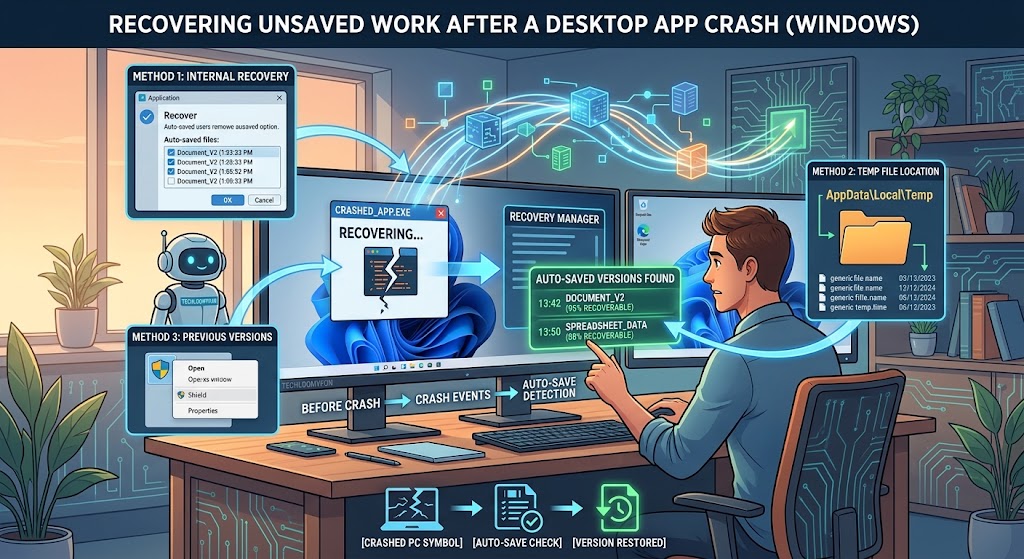
Open the same application again and look for its recovery mechanism.
Reopen the Application That Crashed
Start with the application itself.
After an unexpected shutdown, many programs check for recovery information the next time they launch.
If a recovery panel appears, do not immediately choose an option that deletes recovered files.
Look at the available files and their timestamps first.
You may see several versions of the same project. The newest version is often the one most likely to contain your latest changes, although the exact behavior depends on the application.
Microsoft’s Office applications, for example, can display recovered documents after an unexpected closure and provide dates and times that help identify the most recent copy.
If you find your work, open it and save it immediately under a normal filename and location.
Do not continue editing the only recovered copy before saving it.
Understand the Difference Between AutoSave and AutoRecover
These two terms are easy to confuse.
AutoSave generally saves changes to the actual file as you work, when the application and storage location support it.
AutoRecover is designed to preserve recovery information so that work may be restored after an unexpected crash or shutdown.
Microsoft explains that AutoRecover is intended to help recover work after an unexpected closure, while AutoSave is a separate feature available in supported Microsoft 365 scenarios.
This distinction matters.
If you were working on a brand-new document that had never been saved, AutoSave may not have been active in the same way as it would be for a file already stored in a supported cloud location.
AutoRecover may still have a recovery copy, but you should not assume that every unsaved change was captured.
Check the Application’s Recent or Recovery Files
If the application does not automatically show a recovery window, look through its File, Open, or Recent menus.
Many applications provide a recovery or unsaved-files option somewhere in their interface.
The exact location depends on the software.
For example, Microsoft Word provides:
File > Info > Manage Document > Recover Unsaved Documents
Microsoft’s current documentation also explains how previously saved Word files can contain recoverable versions after an unexpected closure.
Excel and PowerPoint have similar recovery features, although the wording differs.
If your application is not from Microsoft, look for official documentation using terms such as:
recover unsaved files
crash recovery
AutoRecover
recovery files
restore unsaved document
Avoid downloading a recovery utility simply because a search result recommends it.
The application’s own recovery system is the safest place to start.
If You Were Using Microsoft Word
Word is one of the better examples of how unsaved recovery can work.
After a crash, Word may display a Document Recovery pane when you open it again.
If you do not see it, Microsoft provides a manual route:
File > Info > Manage Document > Recover Unsaved Documents
Choose the file that appears relevant and open it.
Then immediately use Save As to save the recovered document normally.
If you had already saved the document previously but lost your latest changes, Word may also show an earlier version under Manage Documents.
This can be more useful than looking for a completely unsaved document because the original file already exists and only the newest changes need to be recovered.
If You Were Using Excel or PowerPoint
Microsoft’s recovery system also applies to supported Excel and PowerPoint versions.
After an unexpected closure, open the application and look for Document Recovery or the relevant unsaved-file recovery option.
Microsoft explains that Excel and PowerPoint can use AutoRecover information to restore work after a crash or unexpected shutdown.
If you find multiple copies, compare their timestamps before choosing one.
Once you identify the version containing your work, save it as a normal file before continuing.
Check Cloud Storage and Version History
If the document was already saved to a cloud service, you may have another recovery option.
For Microsoft 365 files stored in supported OneDrive or SharePoint locations, AutoSave can save changes while you work, and Version History can provide earlier versions of the file.
Open the file and look for its version-history feature.
This can be particularly useful when the file itself was saved but the application crashed before you performed your latest manual save.
The important distinction is that cloud version history can only recover versions that were actually saved or synchronized.
It cannot magically recreate every keystroke that was never captured.
Look for an Earlier Version of the Existing File
Suppose you saved a document at 10:00 AM, edited it until 11:00 AM, and the application crashed.
You might have a 10:00 AM file even if the 11:00 AM changes were never successfully saved.
In that situation, check whether the application or storage service provides version history.
Microsoft’s Office applications can provide earlier versions when the appropriate AutoSave or version-history features are available.
This is different from recovering a completely unsaved document.
You are not looking for the original file. You are looking for a newer version of a file that already existed.
Search for the Application’s Recovery Location
If the application has a documented recovery-file location, you can inspect it manually.
This is especially useful when the program does not display its recovery window correctly.
However, do not guess the folder location.
Different applications store recovery information in different places, and the location can change between versions.
Search the software developer’s official documentation for the application’s recovery-file location.
For Microsoft Word on Windows, Microsoft provides settings that show where Word stores AutoRecover files:
File > Options > Save
The AutoRecover file location field identifies the location Word uses for those recovery files.
If you find a recovery file, copy it somewhere safe before experimenting with it.
Do not delete the original recovery files while investigating.
Search Your Recent Files Carefully
Windows File Explorer can help you find files you may have saved without remembering the exact location.
Open File Explorer and check:
Home > Recent
or search likely folders such as:
Documents
Desktop
Downloads
and the folder where you normally save your projects.
If you remember part of the filename, search for it.
You can also sort files by Date modified to find recently changed documents.
This method is more useful when you suspect the file was actually saved but you cannot remember where.
It is less useful for a completely unsaved document because a file may never have been created as a normal document at all.
Be Careful With Temporary Files
Some applications create temporary files while they are running.
These files are not automatically equivalent to recoverable documents.
A temporary file may contain useful information, but its format, location, and usefulness depend entirely on the application.
Do not rename random files in the Windows temporary directory and expect them to become your missing project.
Instead, check the application’s official recovery documentation first.
If the developer specifically documents a temporary-file recovery method, follow that method.
Do Not Empty the Recycle Bin Yet
If you accidentally deleted an existing file while trying to recover your work, check the Recycle Bin before doing anything else.
If the file is there, restoring it is much safer than attempting more advanced recovery methods.
If the file was permanently deleted, the situation becomes different.
Microsoft provides Windows File Recovery for certain deleted files that cannot be restored from the Recycle Bin. Microsoft also warns that minimizing computer use can improve the chance of recovery because new activity can overwrite space previously occupied by deleted data.
That tool is designed for deleted files, however.
It should not be your first choice when an application simply crashed with an unsaved document.
What If the Application Crashed Before You Ever Saved?
This is one of the hardest situations.
If you created a new document, typed for an hour, and never saved it, there may be no normal file on the drive.
Recovery depends on whether the application created AutoRecover, temporary, or other recovery information.
Microsoft Office, for example, can recover some unsaved documents through its recovery system.
Other desktop applications may behave differently.
If the program has no recovery mechanism and never created a recoverable copy, the missing work may not be recoverable.
That is an unfortunate possibility, but it is better to understand the limitation than to trust a program that promises to recover everything.
If the App Crashed Repeatedly, Protect the Recovered Work First
Suppose you successfully recover the document but the application keeps crashing.
Do not continue working on the recovered copy without saving it.
First create a separate saved copy.
For example, save the recovered document with a new filename such as:
Recovered_Project_September_6
Then work from that copy.
This protects the recovered version if the application crashes again.
If the application is unstable, you may also want to determine why it is crashing before continuing a long editing session.
Check Whether the Crash Was Caused by Low Disk Space
A nearly full drive can create problems for applications that need temporary or recovery storage.
Windows provides storage information under:
Settings > System > Storage
Microsoft’s Storage settings can show categories such as temporary files, installed apps, and system storage.
If the drive is nearly full, free space carefully.
Do not start deleting random application or system folders just to create space.
If you are trying to recover unsaved work, protect the existing recovery data first.
Do Not Restart or Reinstall Everything Immediately
A common reaction after an application crash is to restart Windows, reinstall the application, clear temporary files, or run a cleanup utility.
Those actions may be reasonable later, but they are poor first steps when your priority is recovering unsaved work.
Your order should be:
Recover first. Troubleshoot second. Clean up third.
Once your work is safely saved, you can investigate why the application crashed.
What If No Recovery File Exists?
If the application provides no recovery file and the original document was never saved, there may be nothing for Windows to restore.
Before giving up, check:
- The application’s recovery feature
- The application’s documented recovery folder
- Recent files
- Cloud storage
- Version history
- Previously saved copies
- The Recycle Bin if a file was deleted
- Any backup system you already use
If none contains the missing work, specialized file-recovery software may be a last resort for files that were actually written to storage and later deleted.
It cannot guarantee recovery of data that was never written as a recoverable file.
What Not to Do
Do not immediately empty temporary folders.
Do not use disk-cleaning software before checking recovery files.
Do not uninstall the crashed application.
Do not repeatedly force the computer to restart.
Do not overwrite a recovered file with an older copy.
Do not edit recovery files without first making a backup copy.
Do not trust software that guarantees it can recover every unsaved document.
And do not assume that a crash means all work is permanently lost.
The correct recovery method depends on what the application managed to save before it stopped working.
How to Reduce the Chance of Losing Work Again
Once your work is recovered, take a few minutes to improve your future setup.
Save important projects regularly.
If your application supports AutoSave or AutoRecover, make sure those features are configured appropriately.
For Microsoft Word, for example, the AutoRecover interval and recovery-file location can be checked under:
File > Options > Save
Microsoft documents these settings and allows the AutoRecover interval to be changed.
If you use Microsoft 365 and your workflow supports it, saving supported files to OneDrive or SharePoint can also enable AutoSave and version history.
For important projects, however, do not rely on one protection mechanism.
A saved file plus a backup is much safer than an unsaved file that exists only inside an application.
When Professional Help May Be Appropriate
Consider professional assistance if the missing work was extremely important and the file was deleted, the storage drive is failing, the computer is repeatedly crashing, or the recovery process involves a damaged drive.
Stop using the affected drive as much as possible if you suspect physical storage failure or need advanced deleted-file recovery.
For ordinary application crashes, however, start with the application’s built-in recovery system and documented recovery locations.
A Safe Recovery Order
If a Windows desktop application crashes while you are working, use this order:
1. Reopen the same application.
Look for a recovery window or recovered documents.
2. Save anything recovered immediately.
Use a new filename if necessary.
3. Check the application’s unsaved-file recovery option.
For Office, this may be under File > Info > Manage Document.
4. Check cloud storage and version history.
This is especially important for files already saved to supported cloud locations.
5. Check the application’s documented AutoRecover or recovery location.
Do not guess the location.
6. Search your normal folders for a saved copy.
Use recent files and Date modified.
7. Check the Recycle Bin if an existing file was deleted.
8. Consider advanced file recovery only if the file was actually deleted or lost from storage.
This order gives the application and its normal recovery mechanisms the best chance to restore your work before you make broader changes.
Frequently Asked Questions
Can I recover a document I never saved?
Sometimes. If the application created an AutoRecover, temporary, or other recovery copy, you may be able to restore it. Microsoft Office, for example, provides recovery options for certain unsaved documents.
Does Windows automatically save everything I type?
No. Windows does not automatically preserve every change made inside every desktop application. Recovery depends on the application, its settings, where the file is stored, and whether recovery or synchronization features were active.
What should I do immediately after an app crashes?
Reopen the same application and look for its recovery mechanism. Avoid clearing temporary files, uninstalling the application, or using cleanup software until you have checked for recoverable work.
Is AutoSave the same as AutoRecover?
No. AutoSave can continuously save supported files as you work, while AutoRecover is designed to help recover work after an unexpected closure. Microsoft documents these as separate features.
Can Windows File Recovery recover unsaved work?
Windows File Recovery is primarily designed to recover deleted files that cannot be restored from the Recycle Bin. It cannot guarantee recovery of changes that were never written to a file.
Authoritative Sources
For readers who want official recovery guidance, useful references include:
Microsoft Support — Recover your Word files and documents
Microsoft Support — Recover an earlier version of a Word file
Microsoft Support — Recover your Microsoft 365 files
Microsoft Support — Windows File Recovery
Microsoft Support — Storage settings in Windows
Conclusion
An unexpected application crash does not always mean your work has disappeared.
The first place to look is the application’s own recovery system. Reopen the program, check for recovered files, and save anything you find immediately. Then investigate unsaved-document recovery, AutoRecover locations, cloud storage, version history, and existing copies.
Avoid cleaning temporary files or reinstalling the application until you have finished looking for recovery data.
If no recovery copy exists, there may be no way to recreate work that was never written to storage. That is why regular saving, AutoSave where appropriate, and independent backups remain important even when an application offers recovery features.
The best recovery process is a careful one: recover first, save the recovered copy, and troubleshoot the crash afterward.