Author: TechLoomyFun Editorial Team
Sometimes you find a program in Windows and discover that the Uninstall option is missing, unavailable, or does nothing when you select it.
That does not necessarily mean the program cannot be removed.
Windows supports several different installation and removal methods. Some traditional desktop programs use Control Panel, some provide their own uninstall utility, and compatible applications can also be removed with Windows Package Manager. Microsoft specifically notes that some apps cannot be uninstalled directly from the Settings app and recommends trying another supported removal method.
The important part is to avoid treating the program’s installation folder as something you can simply delete.
Deleting the folder may leave behind services, startup entries, shortcuts, settings, or other components. It can also make a later uninstall attempt harder.
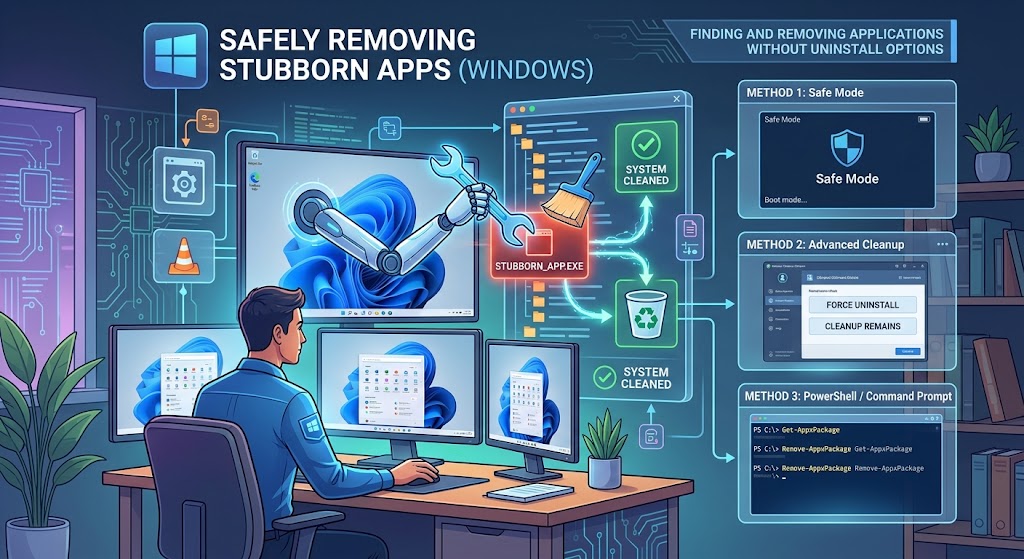
This guide shows how to investigate the program first and then remove it using the least disruptive method available.
Why an App May Have No Uninstall Option
There are several possible reasons.
The application may be a traditional desktop program that expects you to use Control Panel. It may have its own uninstaller. The installation may be damaged. Windows may still have an entry for a program whose original uninstall information is incomplete. Or the application may be packaged in a way that requires a different removal method.
There is also another possibility: the program may be part of Windows itself.
Microsoft notes that some apps built into Windows cannot be uninstalled.
That is why the first step should be identification rather than deletion.
Start by Identifying Exactly What You Installed
Before removing anything, confirm the application’s name and publisher.
Open:
Settings > Apps > Installed apps
Find the application and check the information Windows provides.
Write down the exact name.
If possible, also identify the publisher and version.
This matters because application names can be misleading. A program may have a short name in the Start menu but use a different product name in its installer or uninstall entry.
You should also avoid removing a component simply because you do not recognize it.
A program with a generic name could belong to a printer, graphics driver, antivirus package, hardware utility, or another application you actually need.
If you are unsure what the program is, check the publisher’s official documentation before removing it.
Try the Start Menu Uninstall Option
Before moving to more advanced methods, check the Start menu.
Select:
Start > All apps
Find the application, right-click it, and look for Uninstall.
Microsoft lists this as one of the standard Windows removal methods.
If the option is available, follow the application’s uninstall process.
If it is missing, move to the next method rather than deleting the program’s files manually.
Check Control Panel
This is one of the most useful alternatives when Settings does not offer an uninstall button.
Open Windows Search and type:
Control Panel
Open it, then select:
Programs > Programs and Features
Find the program in the list.
Right-click it and look for:
Uninstall
or
Uninstall/Change
Microsoft specifically recommends Control Panel when an application cannot be uninstalled from the Settings app.
This is especially useful for older Windows desktop software.
Why Control Panel Can Still Show the Program
The Settings app and traditional Windows desktop software do not always expose their uninstall controls in exactly the same way.
An older desktop application may have a traditional installer that registers its removal information with Windows.
That means a program can appear to have no useful uninstall option in Settings while still having a working uninstall entry in Programs and Features.
If Control Panel offers an uninstall option, use it instead of manually deleting the installation folder.
Look for the Program’s Own Uninstaller
Some applications install an uninstaller inside their own program directory.
You may find it in a folder such as:
C:\Program Files
or
C:\Program Files (x86)
The exact location varies by application.
Look for an executable with a name such as:
uninstall.exe
uninstaller.exe
or a similarly named removal program.
Do not launch random executable files simply because their names contain the word “uninstall.”
First confirm that the file belongs to the application you intend to remove.
A safer approach is to identify the application’s installation folder from its shortcut or application information and then look for the publisher’s documented uninstall program.
If the developer provides official uninstall instructions, follow those instructions instead of guessing.
Use WinGet When the Application Is Recognized
Windows Package Manager, commonly accessed through the winget command, provides another option for compatible applications.
Microsoft’s current documentation says the winget uninstall command can uninstall a specified application and can also find applications that were not originally installed through Windows Package Manager.
First open Windows Terminal or Command Prompt.
You can search the installed application list with:
winget list
Find the application you want to remove.
Pay close attention to the exact application name and, when available, its ID.
Then you can use an uninstall command such as:
winget uninstall --name "Application Name"
Using the exact application name is preferable when there are multiple similar results.
You can also use the application’s ID when you have confirmed that it belongs to the correct program:
winget uninstall --id "Application.ID"
Microsoft documents additional options for narrowing the selection by name, ID, version, source, or other identifiers.
Why You Should Check the Result Before Confirming
Do not blindly accept the first result if several programs have similar names.
For example, you might have:
- A main application
- A related updater
- A runtime component
- A companion utility
Removing the wrong package can create a new problem.
Confirm the name and publisher information before proceeding.
What If WinGet Says the App Is Not Found?
That does not necessarily mean the application is impossible to remove.
WinGet is only one removal route.
The program may instead use a traditional installer, a Microsoft Store installation method, a publisher-specific uninstaller, or an incomplete installation record.
Return to Control Panel and check Programs and Features.
If it is not there either, investigate the application’s own documentation.
You can also inspect the application’s installation location to determine whether a publisher-provided uninstaller exists.
Do not respond to a missing WinGet result by deleting the program directory.
Try Repairing the Installation Before Removing It
If the reason you want to remove the application is that it is broken, crashing, or refusing to start, consider whether repair is available.
Windows supports repair options for some applications.
Go to:
Settings > Apps > Installed apps
Select the application’s menu and look for:
Advanced options
If Repair is available, you can try it before using more disruptive actions.
Microsoft notes that repair and reset options are not available for every desktop application.
Repair can be useful when the application’s uninstall information is damaged or when the program is behaving incorrectly.
If you only want the application gone, however, do not reset it unnecessarily. Resetting and uninstalling are different operations.
If Uninstall Starts but Fails
Sometimes the uninstall option exists but produces an error.
Do not immediately delete the application’s folder.
First restart Windows and try the uninstall process again.
Microsoft’s troubleshooting guidance for programs that cannot be installed, updated, or removed includes restarting the PC and using available repair or troubleshooting options.
If the application still refuses to uninstall, note the exact error message.
The wording can reveal whether the problem involves:
- Missing installer files
- A damaged installation
- Permissions
- Another process using the application
- An incomplete previous uninstall
- A corrupted uninstall record
The exact error is much more useful than simply knowing that the uninstall failed.
Do Not Delete the Program Folder First
This is one of the most important warnings in this process.
You may be tempted to open:
C:\Program Files
or
C:\Program Files (x86)
and delete the application’s folder.
Avoid doing this as your first removal method.
An application may have components outside its main folder, including startup entries, services, shared components, scheduled tasks, configuration data, or uninstall information.
Deleting one folder does not necessarily remove those components.
Worse, it can leave Windows believing that the application is installed while the files needed to uninstall it are gone.
If you have already deleted the folder, the situation is different. You may need to repair or reinstall the same application first so its uninstall information and files are restored, then run the normal uninstaller.
Do not download a random replacement installer from an unofficial website.
Use the publisher’s official download source whenever reinstalling software.
Check Whether the App Is Actually a Windows Component
Some applications are closely tied to Windows and should not be treated like ordinary third-party programs.
If the name looks like a Microsoft system component or the program is required by another Windows feature, stop before deleting it.
Microsoft states that some built-in Windows apps cannot be uninstalled.
A good rule is simple:
If you cannot identify what the program does, do not remove it yet.
Find out what it belongs to first.
Be Careful With Registry-Based Removal Guides
You may find websites recommending that you delete registry entries to make a missing application disappear from Windows.
That can be risky.
The Windows Registry contains configuration information used by Windows and applications. Removing the wrong entry can cause unrelated software or system features to malfunction.
Do not follow a registry deletion guide merely because the normal uninstall button is missing.
If an application has a broken uninstall record, the safer solution is usually to use the publisher’s official removal instructions or Microsoft-supported troubleshooting methods.
Registry editing should not be the default solution for an ordinary application that refuses to uninstall.
What If the App Is Suspicious or Looks Like Malware?
Treat suspicious software differently.
If the program appeared without your knowledge, keeps returning after removal, displays aggressive warnings, redirects your browser, or behaves like malware, do not simply keep deleting its folders.
Microsoft recommends using Windows Security when dealing with malware or suspicious applications.
Run an appropriate security scan and investigate the threat before attempting complicated manual removal.
If the software is actively interfering with Windows or security tools, professional assistance may be appropriate.
The priority is then protecting the computer rather than simply making the program disappear from the Installed apps list.
What If the App Is Still Listed After You Remove It?
Sometimes an application can be removed successfully while its entry remains visible.
That does not automatically mean the application is still running.
The entry could be leftover uninstall information.
Before attempting registry modifications, check whether the application actually launches, whether its installation folder remains, and whether related processes or startup entries are still present.
If the software is completely gone but Windows still displays an entry, the publisher’s support instructions may provide a cleaner way to remove the leftover listing.
Avoid deleting registry entries based on a generic cleanup guide unless you understand exactly what the entry represents.
When a Restore Point May Help
System recovery should not be your first choice for removing one application.
However, if a failed installation or removal has caused wider Windows problems, recovery options may become relevant.
Microsoft documents recovery options for situations where software changes create larger system problems.
If you consider restoring Windows to an earlier state, understand what that action affects before proceeding.
Do not use system recovery simply because an application lacks an uninstall button.
It is a much broader action than removing one program.
A Safe Removal Order to Follow
If an application has no Uninstall option in Windows Settings, use this order:
1. Identify the exact application and publisher.
Make sure you know what you are removing.
2. Check the Start menu.
Right-click the application and look for Uninstall.
3. Check Control Panel.
Go to Programs > Programs and Features and look for the program there.
4. Check the application’s official uninstall instructions.
Some programs provide their own uninstaller.
5. Check WinGet.
Use winget list to determine whether Windows Package Manager recognizes the application, then use winget uninstall after confirming the correct package.
6. If removal fails, record the error.
Do not start deleting files at random.
7. Use Microsoft’s troubleshooting guidance or the publisher’s support documentation.
This is especially important when the installation is damaged.
8. Treat suspicious software as a security problem.
Scan it rather than relying on manual deletion.
This sequence keeps the most destructive actions out of the early stages.
What You Should Avoid
There are several shortcuts that can create unnecessary problems.
Do not delete an application’s folder before attempting a proper uninstall.
Do not remove random registry keys.
Do not use an unknown third-party “forced uninstaller” simply because it promises to remove everything.
Do not delete files from Program Files, Windows, or other system directories because their names look related to the application.
Do not disable Windows security features to force an uninstall.
Do not remove a program you cannot identify.
And do not assume that a missing button means Windows is broken. Microsoft itself documents multiple uninstall methods because not every application can be removed through Settings.
When You Should Contact the Software Developer
Contact the developer when the application has a documented uninstall process that no longer works, when the installer is damaged, or when the program requires a special removal utility.
Provide the developer with:
- The exact application name
- Application version
- Windows version
- The uninstall method you tried
- The exact error message
- Whether the program appears in Control Panel
- Whether WinGet detects it
This gives support staff enough information to determine which removal method applies.
For business software, security tools, drivers, VPN clients, and applications that install system services, following the publisher’s removal instructions is particularly important.
Frequently Asked Questions
Why is there no Uninstall button in Windows Settings?
Some applications cannot be uninstalled from Settings. Microsoft recommends trying the Start menu or Control Panel, depending on the application. Traditional desktop programs may still have an uninstall entry under Programs and Features.
Can I use WinGet to remove an app that was not installed with WinGet?
Sometimes, yes. Microsoft’s WinGet documentation says its uninstall command can remove applications that are not necessarily installed through Windows Package Manager, provided WinGet can identify the application and its uninstall information.
Is it safe to delete an app’s folder manually?
It is not the preferred removal method. The folder may contain only part of the application, while uninstall information and other components can remain elsewhere. Use the application’s proper uninstaller, Control Panel, or another supported removal method first.
What should I do if the app is missing from both Settings and Control Panel?
Identify the application’s publisher and check its official documentation for a removal tool or uninstall procedure. You can also check whether WinGet recognizes the application.
Should I edit the Registry if an app will not uninstall?
Usually not as a first step. Registry changes can affect Windows and other programs if the wrong entries are removed. Try supported uninstall methods and the application’s official troubleshooting guidance first.
Authoritative Sources
For readers who want official information, the most useful references are Microsoft’s documentation for removing Windows applications, troubleshooting failed program removal, repairing applications, and using WinGet.
Microsoft Support — Uninstall or remove apps and programs in Windows
Microsoft Support — Fix problems that block programs from being installed or removed
Microsoft Support — Repair apps and programs in Windows
Microsoft Learn — WinGet uninstall command
Conclusion
A missing Uninstall option does not mean you need to start deleting folders or editing the Windows Registry.
First identify the application. Then check the Start menu, Control Panel, the application’s own uninstaller, and WinGet when appropriate. If the normal removal process fails, record the error and use Microsoft’s troubleshooting guidance or the software publisher’s official instructions.
The safest approach is to remove the application through the mechanism that installed and registered it in the first place.
That may take an extra minute, but it greatly reduces the chance of leaving broken components behind or creating a second Windows problem while trying to solve the first one.