Author: TechLoomyFun Editorial Team
You put your Windows PC to sleep, walk away, and expect it to stay quiet. A few minutes later, you hear the fans running or notice that the screen has turned back on.
Sometimes the computer wakes almost immediately. In other cases, it stays asleep for several minutes before suddenly starting again.
This can be frustrating, especially when you are trying to save power or leave the computer undisturbed overnight.
The good news is that an unexpected wake-up usually has something behind it. A mouse, keyboard, network adapter, scheduled wake timer, USB device, software task, or another power-management feature may be responsible. Some newer Windows 11 computers can also use presence sensing to wake the device when you approach it.
The important thing is not to start changing random power settings.
First, find out what is waking the computer. Then change only the setting connected to that cause.
Why Does a Windows PC Wake Up by Itself?
Windows sleep mode is designed to reduce power consumption while allowing the computer to resume quickly. Depending on the computer’s hardware and configuration, certain devices and scheduled events can be allowed to wake the system.
Common causes include a mouse or keyboard receiving an input signal, a network adapter being configured for wake activity, a scheduled wake timer, or another device connected through USB.
There can also be less obvious causes.
For example, a wireless receiver, docking station, game controller, or other peripheral may be able to participate in waking the computer. On compatible Windows 11 systems, presence sensing can also trigger certain automatic actions when the computer detects that you have approached it.
Because the possible causes are different, the best solution is to investigate the wake event before changing settings.
Find the Last Thing That Woke Your PC
Windows includes a command called powercfg that can provide useful information about power and sleep behavior.
After the computer wakes unexpectedly, open Command Prompt as administrator.
Search Windows for:
Command Prompt
Right-click it and select Run as administrator.
Then enter:
powercfg /lastwake
Press Enter.
This asks Windows to report information about the most recent wake event.
If Windows identifies a device or wake source, write it down before changing anything.
For example, the result may point toward a device, driver, or another source associated with the wake event. The exact information varies between computers.
This is one of the best places to start because you are investigating the event rather than guessing.
Microsoft Community troubleshooting guidance also recommends powercfg /lastwake when investigating unexpected wake-ups.
Check Which Devices Are Allowed to Wake Windows
If the previous command does not give you a clear answer, check which devices currently have permission to wake the computer.
In the administrator Command Prompt, enter:
powercfg /devicequery wake_armed
Press Enter.
Windows will display devices that are currently configured as wake-enabled devices.
Depending on the computer, you may see a mouse, keyboard, network adapter, USB controller, or another device.
This list is useful, but there is an important distinction.
A device appearing in this list means that it can wake the PC. It does not necessarily mean that it caused the most recent wake event.
That is why you should combine this information with the results from powercfg /lastwake.
Microsoft Community guidance uses this command when narrowing down devices that have permission to wake Windows.
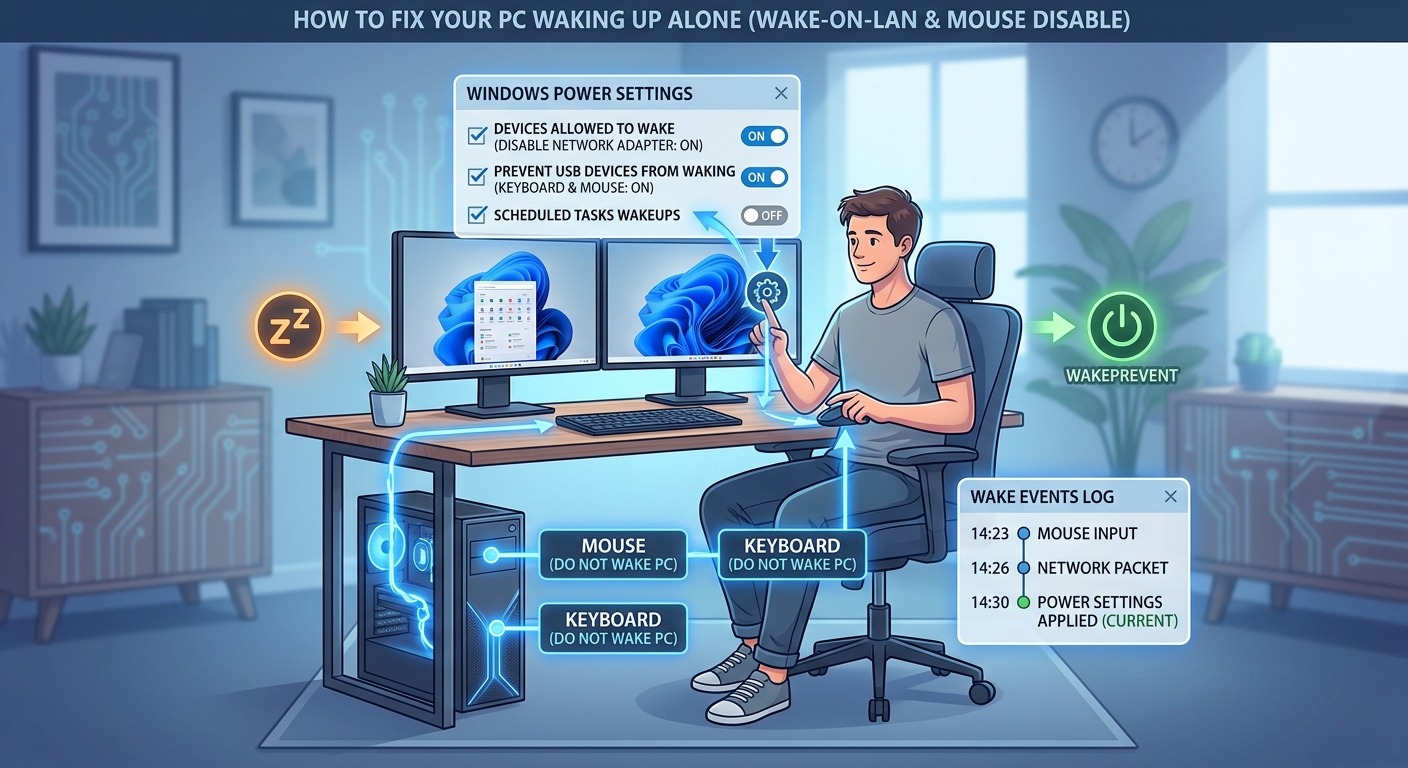
Stop a Mouse From Waking the Computer
A mouse is a common device to investigate because even small movements or signals can potentially wake a sleeping computer when wake permission is enabled.
Open Device Manager.
You can find it by searching Windows for:
Device Manager
Expand the section containing your mouse or pointing device.
Right-click the relevant device and choose Properties.
If the driver provides the option, open the Power Management tab.
Look for a setting similar to:
Allow this device to wake the computer
If you do not want the mouse to wake the PC, clear that option and select OK.
The exact options can vary depending on the mouse, driver, and Windows configuration.
Do not disable the setting simply because the mouse appears in wake_armed. Ideally, test it because the mouse should be connected to the problem before you make a permanent change.
Check the Keyboard
Your keyboard can work in much the same way.
If the keyboard appears when you run:
powercfg /devicequery wake_armed
open its properties in Device Manager and check whether a power-management option allows it to wake the computer.
If available, disable the wake permission and test sleep again.
There is one thing to keep in mind.
After removing keyboard wake permission, you may no longer be able to wake the PC by pressing a keyboard key. Depending on your hardware, you may need to press the physical power button or use another supported wake method. Microsoft notes that available wake methods vary according to the computer’s hardware.
Check the Network Adapter
Network adapters deserve special attention, particularly on desktop computers connected through Ethernet.
Some network configurations support waking the computer because of network activity.
Open:
Device Manager > Network adapters
Find your Ethernet or Wi-Fi adapter and open Properties.
If available, select the Power Management tab.
Look for an option similar to:
Allow this device to wake the computer
If you do not need network-based wake behavior, disabling the relevant wake permission can be a useful troubleshooting test.
Some network adapters also expose additional wake-related settings under an Advanced tab. These settings vary considerably by manufacturer and driver, so do not change an option simply because its name sounds related to waking.
If disabling network wake permission solves the problem, you have a much stronger indication that the adapter was involved.
Check for Scheduled Wake Timers
A scheduled wake timer is different from a mouse or keyboard.
Instead of a physical device waking the computer, Windows or software can schedule an event that wakes it.
To check for active wake timers, open Command Prompt as administrator and run:
powercfg /waketimers
Press Enter.
If Windows reports an active timer, look at the information provided.
It may help identify a service or scheduled task responsible for the scheduled wake event.
If there are no active timers, that eliminates one common possibility, although it does not prove that a device is responsible.
Microsoft troubleshooting guidance recommends checking wake timers when investigating computers that wake unexpectedly.
Review the Allow Wake Timers Setting
If scheduled wake events appear to be involved, check your power plan settings.
Open:
Control Panel > Hardware and Sound > Power Options
Select your current power plan and open its advanced settings.
Under Sleep, look for:
Allow wake timers
Depending on your Windows version and hardware, the available choices can vary.
If you do not want scheduled events to wake the computer, disabling wake timers can be a useful test.
However, remember that disabling wake timers may also prevent legitimate scheduled tasks from waking the computer when you actually want them to.
This is why it is better to understand the specific wake event first rather than immediately disabling every power feature.
Check Windows 11 Presence Sensing
If you have a newer Windows 11 computer, check whether it supports presence sensing.
Microsoft explains that compatible Windows 11 devices can use presence sensors to detect when you leave or approach the computer. Depending on the device, Windows may provide options that automatically wake the device when you approach it.
Open:
Settings > System > Power & battery > Screen and sleep
If your computer supports presence sensing, relevant options may appear there.
Look for a setting similar to:
Automatically wake up my device when I approach
If this is enabled and you do not want your computer waking when you return to your desk, disable the feature and test sleep again.
Not every Windows 11 PC has presence sensing. The available settings depend on the hardware and manufacturer configuration.
Disconnect Unnecessary USB Devices
If the usual wake sources do not explain the problem, test your external devices.
USB devices can complicate sleep troubleshooting because computers may have several peripherals connected at once.
Temporarily disconnect nonessential devices such as:
- USB hubs
- Game controllers
- Wireless receivers
- External input devices
- Docking stations
- Other USB peripherals
You do not need to remove everything permanently.
Put the PC to sleep and see whether it stays asleep.
If the problem disappears, reconnect the devices one at a time.
When the unwanted wake-up returns, you have a much stronger clue about which device deserves further investigation.
This controlled approach is safer than changing several Windows settings simultaneously.
Use powercfg /requests If the Cause Is Still Unclear
If the normal wake commands do not identify the problem, check power requests.
Open an administrator Command Prompt and run:
powercfg /requests
This command can show active requests from applications, drivers, or other system components that may affect power behavior.
The output can look complicated, so do not assume that every entry is a problem.
Instead, look for a component that appears consistently when the computer is experiencing sleep-related problems.
If you see a specific application or driver repeatedly listed, investigate that software or driver before making changes elsewhere.
Check Supported Sleep States
Another useful command is:
powercfg /a
This shows the sleep states available on the computer.
This matters because modern Windows computers do not all use exactly the same sleep implementation.
Some systems support traditional sleep states, while others use modern standby behavior.
If your computer behaves differently from instructions written for another PC, the difference may be related to the hardware’s supported power states.
Do not force a sleep state that your computer does not support.
Update Windows and Important Drivers
If you have ruled out obvious wake devices and timers, check for Windows and driver updates.
Pay particular attention to:
- Chipset drivers
- Network drivers
- Graphics drivers
- USB-related drivers
- BIOS or firmware updates
Use Windows Update where appropriate.
For hardware-specific drivers or BIOS updates, use the support website provided by your computer or motherboard manufacturer.
Avoid random driver-update utilities that claim to automatically replace every driver on the computer.
A sleep problem that started after a driver or firmware change is particularly worth investigating.
If your manufacturer has released a newer version that addresses sleep, standby, USB, networking, or power-management problems, installing the appropriate update may help.
Microsoft’s sleep troubleshooting guidance also recommends keeping device drivers current when dealing with problems related to waking from sleep or hibernation.
Test One Change at a Time
This is perhaps the most important troubleshooting habit in the entire process.
Suppose your mouse, keyboard, network adapter, and wake timers are all enabled.
Do not disable all four at once.
Instead, disable the most likely cause.
Put the computer to sleep.
Wait long enough to see whether the usual problem occurs.
If the PC stays asleep, you have evidence that the change may have mattered.
If it wakes again, restore the previous setting and test the next likely cause.
This process may take longer than changing everything at once, but it gives you useful information.
It also prevents you from accidentally disabling a feature you actually need.
What If powercfg /lastwake Shows an Unknown Source?
Do not panic if Windows reports an unknown wake source.
The command does not always provide a neat answer.
If the result is unclear, continue with:
powercfg /devicequery wake_armed
and:
powercfg /waketimers
Then check:
powercfg /requests
and:
powercfg /a
You should also test external USB devices and check whether your computer supports presence sensing.
An unknown wake source can mean that Windows did not provide enough information to identify the event. It does not automatically mean that the motherboard or operating system is defective.
Recent Microsoft Community troubleshooting discussions also include cases where powercfg /lastwake failed to identify a useful wake source.
What If the PC Wakes Immediately After You Put It to Sleep?
An immediate wake-up is slightly different from a computer that wakes several hours later.
If it wakes within seconds, start with the physical devices.
Disconnect unnecessary USB devices.
Keep the mouse completely still.
Do not touch the keyboard.
Temporarily disable wake permission for likely input devices.
Then test sleep again.
If the computer remains asleep after disconnecting a particular device, reconnect it and repeat the test to confirm the result.
If it still wakes immediately with the obvious devices disconnected, investigate network wake settings, wake timers, power requests, drivers, and firmware.
What If It Only Happens at Night?
If the computer stays asleep during the day but wakes at roughly the same time overnight, scheduled activity becomes more interesting.
Check:
powercfg /waketimers
Then investigate scheduled tasks or software that may be configured to perform maintenance, updates, backups, or other scheduled work.
Do not disable Windows maintenance tasks blindly.
If a specific application is scheduling the activity, check that application’s settings first.
A consistent time pattern can be a valuable diagnostic clue.
What Not to Do
Do not randomly disable Windows services because your computer wakes from sleep.
Do not delete system files.
Do not modify the Registry simply because an online guide claims it will permanently fix sleep problems.
Do not change several BIOS settings without understanding what they do.
Do not uninstall drivers just because they appear in a power-related command.
And do not reset Windows as your first troubleshooting step.
A reset can remove applications and settings, and some recovery procedures can result in data loss. Microsoft recommends considering the available recovery options carefully and backing up important files before using recovery methods that can remove data or applications.
The goal is to identify the wake source, not erase the computer’s configuration.
When You Should Seek Professional Help
If the PC continues waking after you have ruled out normal wake devices and scheduled events, the problem may involve drivers, firmware, hardware, or the computer’s sleep implementation.
You should also seek help if the computer:
- Restarts instead of simply waking
- Displays blue-screen errors
- Becomes unusually hot
- Loses files
- Makes unusual storage-drive noises
- Has trouble returning from sleep
- Repeatedly crashes after waking
Back up important files before performing major troubleshooting.
For BIOS, firmware, and hardware-specific power problems, the computer or motherboard manufacturer’s support documentation is often more useful than generic instructions because power settings vary by hardware.
A Simple Troubleshooting Order
If you want to work through the problem efficiently, use this order.
1. Find the last wake source
Run:
powercfg /lastwake
2. Check wake-enabled devices
Run:
powercfg /devicequery wake_armed
3. Check scheduled wake timers
Run:
powercfg /waketimers
4. Test the likely hardware
Check the mouse, keyboard, network adapter, USB devices, and wireless receivers.
5. Check Windows 11 presence sensing
Do this if your computer supports the feature.
6. Check active power requests
Run:
powercfg /requests
7. Check supported sleep states
Run:
powercfg /a
8. Update Windows, drivers, and firmware
Use official Windows and manufacturer sources.
9. Investigate hardware
If the problem survives all of the software and configuration tests, consider professional diagnosis.
This order keeps the troubleshooting focused and reduces unnecessary changes.
Frequently Asked Questions
Why does my Windows PC wake up by itself?
A device such as a mouse, keyboard, USB peripheral, or network adapter may have permission to wake the computer. Scheduled wake timers, power requests, and features such as presence sensing on compatible Windows 11 systems can also be involved.
How can I find out what woke my Windows PC?
Open Command Prompt as administrator and run:
powercfg /lastwake
Windows may identify the device or event associated with the latest wake. If the result is unclear, use powercfg /devicequery wake_armed and powercfg /waketimers to investigate further.
Can a mouse wake a Windows computer?
Yes. If the mouse and its driver support wake functionality and permission is enabled, mouse activity can wake the PC. You can check the device’s Power Management settings in Device Manager.
Can Wi-Fi or Ethernet wake my PC?
Depending on the hardware and driver, a network adapter may have permission to wake the computer. Check the adapter in Device Manager and review its available power-management settings.
What should I do if powercfg /lastwake does not identify the problem?
Check powercfg /devicequery wake_armed, powercfg /waketimers, and powercfg /requests. Also test external USB devices and check presence-sensing settings on compatible Windows 11 computers. If the problem remains, investigate drivers, firmware, and hardware.
Authoritative Sources
For readers who want official information, useful Microsoft resources include:
- Microsoft Support — Shut down, sleep, or hibernate your PC
- Microsoft Support — Managing Presence Sensing settings in Windows 11
- Microsoft Support — Recovery options in Windows
Conclusion
A Windows PC that wakes itself is usually easier to troubleshoot once you stop guessing and investigate the actual wake event.
Start with powercfg /lastwake, then check powercfg /devicequery wake_armed and powercfg /waketimers. These commands can help narrow the problem to a device, scheduled event, or another power-related component.
If a mouse, keyboard, USB device, or network adapter appears to be involved, test that device individually. On compatible Windows 11 computers, also check presence sensing because it can provide automatic wake behavior.
If the normal wake sources do not explain the behavior, use powercfg /requests and powercfg /a, then investigate drivers, firmware, and hardware.
Most importantly, change one thing at a time. That way, when the computer finally stays asleep, you will know what actually fixed the problem instead of simply hoping that a collection of unrelated changes worked.