By: TechLoomyFun Editorial Team
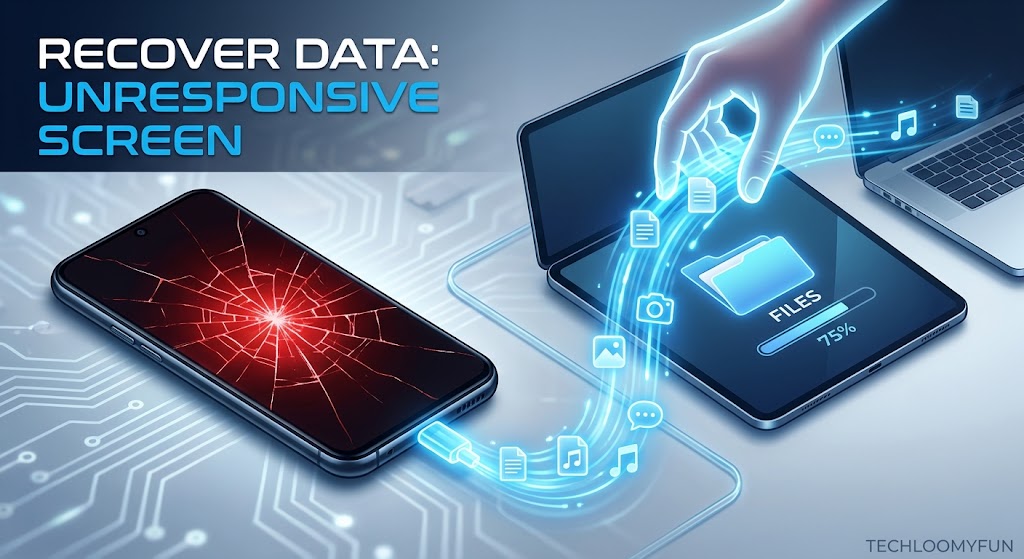
A broken or completely unresponsive Android touchscreen can make a simple file transfer feel impossible.
The phone may still turn on. You might hear notifications, feel vibration, or see the lock screen, but tapping and swiping no longer work. Your first thought may be to connect a USB cable to a computer and copy everything.
Sometimes that works.
Sometimes it doesn’t.
Android devices use security protections that can prevent a computer from accessing personal files until the phone has been unlocked and the appropriate USB connection has been authorized. If the touchscreen is the part that has failed, that authorization can become the biggest obstacle.
The safest approach is therefore to figure out what still works before attempting anything destructive.
Do not factory-reset the phone. Do not start randomly installing recovery software. And if the files are important, avoid repeatedly guessing PINs or passwords.
Instead, work through the recovery options from the least risky to the more involved.
First, Determine What Still Works
Before connecting cables or changing settings, examine the phone.
Does the display still show an image?
Does the phone respond to the power button?
Can you hear notification sounds?
Does it vibrate when connected to a charger?
Can you see the lock screen?
Does the touchscreen fail everywhere, or only in certain areas?
These details change the recovery options available to you.
For example, a phone with a working display but a dead touch layer is very different from a phone with a completely black screen.
If the phone is still operating normally underneath the broken touchscreen, recovering the data may be much easier.
Don’t Factory-Reset the Phone
This is the most important warning in the process.
A factory reset is designed to erase the device and return it to its initial setup state.
If your goal is to recover photographs, videos, documents, or other personal files, a factory reset moves you in the opposite direction.
Do not follow a repair guide that tells you to reset the phone simply because the screen isn’t responding.
If your files are valuable and you aren’t sure whether they’re backed up, preserve the current state of the device until you’ve explored the recovery options.
Check Whether Your Files Are Already Backed Up
Before attempting physical recovery, check your existing backups.
You may discover that the files you need are already available through a cloud service.
For photographs and videos, check the cloud photo service you normally use.
For contacts, check whether they were synchronized with your Google account or another account.
For documents, check services such as Google Drive, OneDrive, Dropbox, or another storage provider you previously configured.
This is the easiest outcome because you may not need to interact with the damaged phone at all.
Why this should come first
If your important photos were already backed up, there is no reason to risk damaging the phone further just to retrieve another local copy.
Cloud backup can also help you determine which files are actually missing before you begin recovery.
If the Screen Works but Touch Does Not, Try a USB Mouse
One of the most useful options for an Android phone with a working display but failed touchscreen is a USB mouse.
Many Android devices support USB peripherals through USB On-The-Go (OTG) hardware, although compatibility varies by phone.
You may need:
Android phone → USB OTG adapter → USB mouse
If the phone supports the connection, a mouse pointer may appear on the screen.
That can give you a way to interact with the phone without using the touchscreen.
You could potentially use the mouse to:
- unlock the phone
- open Settings
- approve a USB connection
- enable or change relevant settings
- open a file manager
- copy important files
- confirm prompts
The exact behavior depends on the Android version and device.
What you need to know
An OTG adapter does not magically bypass Android’s security.
If the phone requires a PIN, password, or other unlock method, you still need to authenticate normally.
The mouse is simply replacing the failed touch input.
Try a USB Keyboard if Entering the PIN Is Difficult
A USB keyboard can sometimes provide another way to interact with a phone whose touch input is unavailable.
With a compatible OTG adapter, you may be able to enter text or navigate certain screens using physical keys.
Again, support varies by device.
This is particularly useful if the display works but the touchscreen does not.
Don’t assume that every keyboard shortcut from a desktop computer will work on Android. The goal is simply to restore enough physical input to unlock and operate the device.
If You Can Unlock the Phone, Connect It to a Computer
Once the phone is unlocked, connect it to a trusted computer using a suitable USB cable.
Android may present a USB notification or connection prompt.
Depending on the device and Android version, you may need to choose a mode such as:
File Transfer
or
Android Auto
rather than leaving the phone in a charging-only mode.
Google’s Android documentation explains that USB connections can be used to transfer files between Android devices and computers, although the exact instructions vary between devices and operating systems.
The important part is that the phone normally needs to be unlocked and configured to permit file access.
If Windows sees the phone but you cannot browse its storage, don’t immediately assume that the cable is defective.
The phone may simply still be locked or using a USB mode that doesn’t expose its files.
Copy the Most Important Files First
Once the computer can access the phone, don’t immediately start copying everything.
Prioritize irreplaceable files.
Start with:
Photos
Videos
Documents
Downloads
Voice recordings
Other files that cannot easily be replaced
Copy them to a computer or another trusted storage location.
After copying, open several files from the computer to verify that they actually work.
This is better than assuming that a transfer completed successfully simply because the progress bar disappeared.
Keep the original phone untouched for now
If possible, don’t delete files from the phone after transferring them.
First make sure the backup is complete.
If you accidentally discover that one folder was missed, the original device is still available.
What If the Computer Only Charges the Phone?
This is a common point of confusion.
A USB cable can successfully charge a phone without allowing data transfer.
If the phone charges but the computer doesn’t show its storage, check:
- whether the phone is unlocked
- whether the cable supports data transfer
- whether the correct USB mode is selected
- whether the computer recognizes the device
- whether the phone is displaying a USB notification
- whether the USB port or cable is damaged
If the touchscreen doesn’t work, selecting the appropriate USB mode can be difficult.
This is where an OTG mouse can become particularly useful if the display still works.
What If the Screen Is Completely Black?
A completely black display creates a much harder situation.
First determine whether the phone itself is still operating.
Connect it to a charger and watch for:
- vibration
- notification sounds
- charging indicators, if any
- computer detection
- incoming-call behavior
Call the phone from another device.
If it rings or vibrates, the phone may still be functioning even though the display isn’t working.
That’s valuable information.
But don’t assume that a computer will automatically give you access to the internal storage.
Modern Android devices use encryption and authentication protections. Simply connecting a locked phone to a computer does not generally provide unrestricted access to personal files.
Can You Use a USB Mouse With a Completely Black Screen?
Possibly, but it is much less practical.
If the display is completely unavailable, you cannot see the pointer or know exactly what you’re clicking.
Blindly navigating a locked Android phone is not a reliable recovery method.
If the phone previously had an external display feature or another accessibility setup configured, your situation may be different, but don’t assume that an undocumented trick will work on your particular model.
When the display is completely dead and the data is important, a screen repair can sometimes be the safest next step.
You don’t necessarily need a permanent repair.
The objective may simply be to restore enough display and touch functionality to unlock the device and transfer the files.
Check Whether Your Phone Supports an External Display
Some Android phones support external displays through USB-C, but this is highly device-specific.
A USB-C port does not automatically mean that the phone can send video to a monitor.
Before buying an adapter, check the official specifications or support documentation for your exact phone model.
If supported, an external monitor can potentially give you a visible interface when the built-in screen is unusable.
You may still need a way to interact with the phone, however. A compatible mouse or keyboard can sometimes help.
This is why identifying the exact phone model matters.
Don’t Rely on USB Debugging Unless It Was Already Set Up
You may encounter instructions recommending Android Debug Bridge, commonly called ADB, to copy files from a damaged phone.
ADB can be useful for certain technical recovery situations, but it is not a universal bypass for a locked or broken Android device.
For ADB-based access to work in the usual way, the phone generally needs to have had the appropriate developer setting enabled beforehand, and the computer may need to have been authorized by the phone.
If USB debugging was never enabled and authorized, you generally cannot solve the problem simply by plugging the phone into a computer and running ADB commands.
This is another reason not to follow random “broken screen recovery” guides that promise instant access.
If You Previously Authorized Your Computer
Your situation may be better if the phone had already been configured for development and the computer was previously trusted.
Even then, access depends on the device’s current state, Android version, security configuration, and whether the phone remains unlocked or otherwise permits the required connection.
Don’t assume that an old computer authorization means you can bypass every security barrier.
Android’s security model is specifically designed to prevent someone who physically possesses a phone from simply extracting personal data.
Check Google Photos and Other Cloud Services From Another Device
If the old phone is inaccessible, use another phone or computer to sign in to the cloud accounts you previously used.
Check whether your photos, videos, contacts, and documents are already present.
This can be surprisingly important after a phone breaks because people often remember turning on backup but forget exactly what was included.
For example, your camera photographs may have been backed up while downloads or WhatsApp media were not.
Don’t assume that because one category is backed up, everything on the phone is.
WhatsApp Requires Special Attention
If you’re trying to recover WhatsApp conversations or media, don’t treat them exactly like ordinary files.
WhatsApp has its own backup and restoration system.
Before uninstalling WhatsApp, resetting the phone, or clearing its data, verify whether an appropriate backup exists and whether it is associated with the account and phone number you expect to use for restoration.
If the old phone is still accessible enough to operate, avoid making destructive changes to WhatsApp until you’ve checked its backup status.
A factory reset or careless deletion can remove local data that wasn’t included in a cloud backup.
What If the Phone Has a microSD Card?
If your old Android phone uses a removable microSD card and your photos or documents were stored there, recovery may be considerably easier.
Power the phone down if possible, remove the card according to the manufacturer’s instructions, and use an appropriate card reader with a computer.
However, don’t assume that every Android phone stores camera photos on the microSD card.
Some devices use internal storage by default.
Also, if the card was configured as adopted/internal storage on a device that supports that feature, it may be encrypted and tied to the original phone.
In that situation, simply inserting the card into another device may not make the files readable.
If the Phone Was Dropped or Exposed to Water
Physical damage changes the situation.
If the phone stopped responding after a serious drop, liquid exposure, or other physical damage, avoid repeatedly powering it on if you suspect liquid is still present.
Do not use a hair dryer or another high-heat method to dry it.
If the data is irreplaceable, a reputable repair or data-recovery professional may be a better choice than repeated DIY experiments.
Tell the technician clearly:
“The data is important. Please do not reset or erase the device.”
That distinction matters.
You are seeking data preservation, not simply a phone that turns on again.
What If You Know the PIN but Can’t Enter It?
If the display works and only touch input has failed, an OTG mouse or keyboard may provide a practical way to enter the PIN.
If the display is also broken, a temporary screen replacement may be the simplest route.
Avoid services or software that claim they can remove Android’s lock screen while preserving all data without requiring authentication.
Modern Android security is specifically designed to prevent unauthorized access to encrypted personal information.
If the phone belongs to you and the data is valuable, restoring normal input or using official recovery methods is usually safer than trying to defeat the lock.
Don’t Keep Guessing the Screen Pattern or PIN
Repeatedly trying random credentials is not a sensible recovery strategy.
You could trigger longer security delays or, depending on the device and configuration, encounter additional security restrictions.
If you know the correct PIN or password, use a reliable input method to enter it.
If you don’t know it, don’t attempt to bypass the lock screen with questionable software.
The goal is to recover your own data without compromising its security.
A Practical Recovery Order
If your Android touchscreen has stopped responding, use this order:
1. Check cloud backups
Look at Google Photos, Google Drive, contacts synchronization, WhatsApp backups, and any other cloud service you already used.
2. Determine whether the phone still works
Check the display, vibration, sounds, charging, calls, and computer detection.
3. If the display works, try OTG
A compatible USB OTG adapter and mouse may give you enough control to unlock and operate the phone.
4. Connect to a trusted computer
Once unlocked, select the appropriate USB file-transfer mode and copy important files.
5. Prioritize irreplaceable data
Copy photos, videos, documents, recordings, and other files first.
6. Consider a temporary screen repair
If the display or touch layer is unusable, restoring basic screen access may be safer than attempting an unofficial bypass.
7. Use professional recovery for serious physical damage
If the phone suffered liquid damage, severe physical damage, or storage failure, stop experimenting and seek qualified help.
What Not to Do
Don’t factory-reset the phone before checking backups.
Don’t install random “Android data recovery” applications that promise to unlock a protected phone.
Don’t give your Google password or screen PIN to an unknown recovery service.
Don’t repeatedly guess the PIN.
Don’t erase WhatsApp data before checking its backup status.
Don’t format a microSD card before determining whether it contains your only copy of important files.
And don’t assume that a USB cable automatically gives a computer access to a locked Android phone.
These mistakes can turn a difficult recovery into permanent data loss.
If the First Recovery Method Doesn’t Work
Suppose cloud backups don’t contain the missing files, the touchscreen doesn’t respond, and a USB mouse doesn’t work.
Move to the next least-destructive option.
If the display is visible but touch is dead, investigate compatible OTG input.
If the display is completely dead but the phone appears to operate, check whether your exact model supports an external display.
If neither is practical, consider a temporary screen repair.
If the phone has suffered significant physical damage, seek professional data-preservation assistance.
The important thing is to avoid destructive troubleshooting while the data remains the priority.
When Professional Help Makes More Sense
Professional assistance is appropriate when:
- the phone has liquid damage
- the motherboard may be damaged
- the storage isn’t detected
- the display and touch are both unusable
- the phone repeatedly restarts
- the device won’t boot normally
- important data exists only on the phone
- you aren’t comfortable opening or repairing electronics
Choose a reputable repair or data-recovery provider and explain that preserving the data is more important than simply restoring the phone.
Ask what they intend to do before authorizing a reset, software reinstallation, bootloader operation, or storage replacement.
Some repairs are straightforward.
Others can make recovery harder if the device is erased or its original security state is changed.
Frequently Asked Questions
Can I transfer files from an Android phone if the touchscreen doesn’t work?
Often, yes, if the display still works and you can interact with the phone using a compatible USB OTG mouse or another supported input method. Once the phone is unlocked and USB file transfer is permitted, you may be able to copy files to a computer.
Can I access a locked Android phone from a computer?
Usually, you should not expect unrestricted access simply by connecting a USB cable. Android uses authentication and security protections to prevent unauthorized access to personal data.
Can a USB mouse unlock an Android phone with a broken touchscreen?
If the phone supports USB OTG and the display still works, a mouse can sometimes replace the failed touch input. You still need to authenticate using the phone’s normal lock-screen credentials.
What if the Android screen is completely black?
First determine whether the phone is still operating. If it is, check whether your specific model supports an external display or consider a temporary screen repair. A completely black screen makes blind navigation unreliable.
Will a factory reset fix a phone with an unresponsive screen?
A factory reset may address some software problems, but it is not an appropriate first step when your priority is recovering files. It can erase personal data from the device.
Authoritative Source Suggestions
For publication, verify current instructions against official Android and manufacturer documentation for the specific device being discussed.
Google’s Android Help documentation is the appropriate starting point for current USB file-transfer, backup, device-security, and account-sync behavior.
For Samsung, Motorola, Pixel, Xiaomi, OnePlus, and other manufacturers, use the official support documentation for the exact model because OTG, external-display, recovery, and USB behavior can vary considerably.
For WhatsApp recovery, use WhatsApp’s official Help Center rather than relying on third-party recovery software websites.
Conclusion
A dead touchscreen does not automatically mean your important files are gone.
The first job is to determine what still works. If the display remains visible, a compatible OTG mouse or keyboard may give you enough control to unlock the phone and transfer your files. If the phone can be unlocked, a normal USB connection to a trusted computer may then provide access to its storage.
If the screen is completely unusable, check cloud backups and determine whether your specific phone supports an external display. If the data exists only on the device, a temporary screen repair may be safer than attempting an unofficial unlocking or recovery method.
Most importantly, don’t reset the phone just because the screen has stopped responding.
When the files matter more than the device itself, preserve the phone’s current state, verify your backups, and work from the least-destructive recovery option toward professional help if necessary.