Author: TechLoomyFun Editorial Team
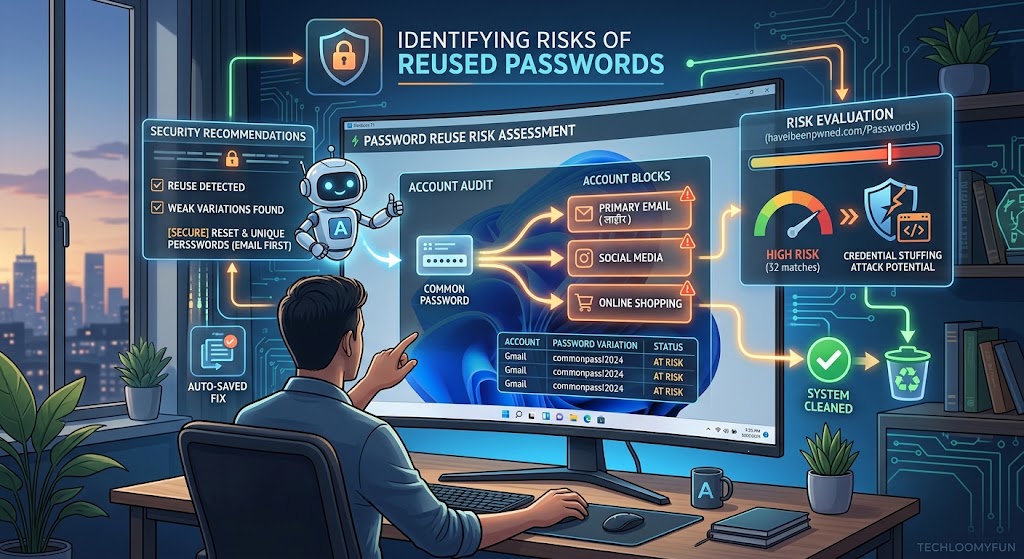
Reusing one password can turn one account problem into several
Using the same password for several websites is convenient until one of those websites suffers a security breach or your password is exposed through phishing.
The danger is not limited to the original account.
If the same email address and password combination works somewhere else, an attacker may try those credentials on other services. This is one reason Google recommends using a different password for each important account, and Microsoft warns that reused passwords can put multiple accounts at risk when one password is compromised.
The difficult part is figuring out which accounts share the same password.
You do not need to remember every website you have ever joined. A better approach is to check your saved passwords, identify repeated passwords, and then work through the affected accounts in the right order.
First, determine whether you actually reused the password
Before changing anything, think about the password you are concerned about.
Maybe you received a security warning saying one of your passwords was compromised. Perhaps you recently learned that a website you used suffered a data breach. Or you may simply realize that you have been using the same password for several years.
The important question is:
Where else did I use this exact password?
Do not limit the search to accounts you use every day.
Old shopping accounts, forums, newsletters, cloud services, gaming accounts, social networks, work tools, and forgotten websites can all matter if they use the same credentials.
An old account may contain less valuable information than your primary email account, but it can still reveal your password or provide another route for attackers to test the same credentials.
Check your saved passwords first
If you use a password manager or your browser saves passwords, this is usually the easiest place to begin.
You are looking for two things:
Which passwords are reused?
Which passwords have been reported as compromised?
Google Password Manager’s Password Checkup can identify saved passwords that are exposed, weak, or used across multiple accounts.
If you use Chrome and save passwords to your Google Account, open the password-management area and run Password Checkup.
You can also access Google’s password-management service directly through its official account tools.
The exact screens can change, so focus on the security results rather than expecting every Android or Chrome version to have identical menus.
Look for passwords marked as reused
A reused-password warning does not necessarily mean that the password has already been stolen.
It means the same password is being used for more than one account.
That still matters.
Imagine that five websites use the same password:
Account A — same password
Account B — same password
Account C — same password
Account D — same password
Account E — same password
If Account A is breached and that password becomes available to an attacker, Accounts B through E may now be exposed to credential-stuffing attempts.
CISA describes unique credentials as an important security control because attackers can otherwise use compromised credentials to gain access to other systems and accounts.
The goal is therefore not merely to fix Account A.
You need to find the other accounts that share the same password.
Check whether the password has also been exposed
There is an important difference between a password being reused and a password being compromised.
A reused password is one you use in multiple places.
A compromised password is one that has become available to someone who should not have it.
A password can be reused without currently being known to attackers. But if that password appears in a breach or is stolen through phishing, every account using it becomes more concerning.
Google’s Password Checkup can identify saved passwords that have been exposed, while Microsoft Edge’s Password Monitor can alert users when saved passwords have been compromised.
If a password is reported as compromised, stop using it.
Do not keep it for accounts that you consider unimportant.
Do not test the password by logging into every website
This is an easy mistake to make.
If you suspect that an old password has been exposed, you might be tempted to visit every website you remember and try the password.
That is unnecessary and can create additional problems.
Instead, use your password manager’s saved-password list to identify where the password was stored.
You also do not want to type an old password into unfamiliar websites just to see whether it still works.
If a website is no longer familiar to you, use its official password-reset or account-recovery process rather than experimenting with old credentials.
Make a list of every account using the same password
Once you have identified the reused password, make a simple list.
For example:
| Account | Same password? | Importance | Action |
|---|---|---|---|
| Primary email | Yes | Very high | Change immediately |
| Banking | Yes | Very high | Change immediately |
| Cloud storage | Yes | High | Change soon |
| Shopping site | Yes | Medium | Change |
| Old forum | Yes | Lower | Change or close account |
You do not need to keep the actual passwords in this table.
Record only the account names and security status.
Never paste your real passwords into a note, spreadsheet, chat, or document just to organize them.
Secure your most important account first
When several accounts are affected, order matters.
Start with accounts that could help someone access other accounts.
Your primary email account is usually particularly important because password-reset messages for other services may be delivered there.
If an attacker controls your email account, changing passwords elsewhere may not be enough if they can continue receiving account-recovery messages.
Google’s compromised-account guidance specifically recommends changing passwords on other sites where the same password was used, along with reviewing unfamiliar devices and suspicious account activity.
After your main email, prioritize accounts containing financial information, sensitive personal information, work data, cloud files, or other valuable information.
Change the reused password everywhere it was used
Once you have identified the affected accounts, replace the reused password.
Do not create a slightly modified version for each website.
For example, if the old password was:
ExamplePassword123
Do not turn it into:
ExamplePassword123!
for one account and:
ExamplePassword1232
for another.
Those variations can still be connected if the original password becomes known.
Each important account should have its own password.
Google recommends different passwords for important accounts, while Microsoft recommends strong, unique passwords rather than reusing the same password across accounts.
Use a password manager instead of trying to memorize everything
One reason people reuse passwords is simple: remembering dozens of completely different passwords is difficult.
A reputable password manager can generate and store unique passwords for each account.
Google Password Manager, for example, can suggest strong unique passwords and store passwords securely within the Google account.
Microsoft Edge also includes a password generator designed to create unique passwords for websites and save them in the browser’s password system.
The important part is not which particular password manager you choose.
The important part is that you stop depending on one memorable password for everything.
Change passwords through the real website or app
When fixing reused passwords, avoid clicking password-reset links from unexpected emails or messages.
Instead, open the service’s official application or manually navigate to its known website.
This matters because an attacker can send a fake security alert that directs you to a convincing login page.
You could end up giving the new password to the attacker while believing you are securing the account.
Microsoft recommends caution with unexpected links and attachments, particularly when dealing with possible phishing attempts.
Turn on multifactor authentication after changing passwords
Changing reused passwords removes one major weakness, but it should not be the end of the process.
Where an account supports multifactor authentication, enable it.
MFA adds another authentication requirement beyond the password, which can make unauthorized access more difficult even if a password is exposed. Microsoft recommends enabling multifactor authentication where available.
Use the strongest practical authentication method offered by the service.
Depending on the account, this may include a passkey, authentication app, security key, or another supported method.
Check whether the account was already accessed
Changing the password is important, but you should also investigate whether someone actually used the old credentials.
Look for areas such as:
Recent activity
Login history
Devices
Where you’re signed in
Security activity
Sessions
The name differs between services.
Look for sign-ins you do not recognize, especially those occurring around the time you first learned about the compromised password.
Do not assume that an unfamiliar location automatically means an attacker was present. Mobile networks and other connection methods can make location information less precise.
Look for the complete picture: device, time, location, browser, and activity.
Pay special attention to your email account
If your reused password was also used for your primary email account, treat that as a higher-priority problem.
After changing the password, check whether anything else was modified.
Look for unfamiliar:
- Recovery email addresses
- Recovery phone numbers
- Forwarding rules
- Filters
- Connected applications
- Login sessions
- Authentication methods
An attacker who gets into an email account may try to maintain access even after the password is changed.
Google recommends reviewing suspicious account activity and unfamiliar security-setting changes when an account may have been compromised.
Do not forget old accounts
An old account can be easy to overlook.
Perhaps you created an account for a website years ago and have not used it since.
If it still uses the reused password, it should be included in your cleanup.
You have two reasonable options.
If you still need the account, change the password to a unique one.
If you no longer need the account, use the service’s legitimate account-deletion process if one is available.
Do not assume that deleting the password from your browser means the online account itself has disappeared.
Check for passwords saved in more than one password manager
Some people have passwords stored in several places without realizing it.
You might have:
- Google Password Manager
- Microsoft Edge passwords
- Another browser’s password store
- A dedicated password manager
- Passwords saved on an old phone
- Passwords saved on another computer
If you only check one location, you may miss accounts using the same password.
However, do not export all your passwords into an unprotected spreadsheet just to compare them.
Keep the investigation inside a trusted password-management system whenever possible.
What if you cannot remember where you reused the password?
This is common.
Start with accounts you know you created around the same period.
Think about services where you usually used the same email address.
Then check your saved-password list.
You can also search your own email inbox for account-creation messages, password-reset emails, and security notifications. This can help identify old accounts without requiring you to guess which websites you used.
Do not search for or store your actual passwords in email.
You are looking for account names, not password values.
What if the password was only similar, not identical?
This still deserves attention.
Suppose you normally use a base password and change the last few characters for each website.
That is better than exact reuse in one narrow sense, but it can still be risky if the pattern is predictable.
If someone obtains one password and recognizes your pattern, they may attempt variations on other accounts.
For important accounts, move away from predictable password patterns and use genuinely separate credentials.
What if the reused password has never been exposed?
You should still replace it.
There is no need to wait for a breach.
Google explicitly recommends unique passwords because a password obtained from one site can otherwise be used against multiple accounts.
Think of this as reducing the number of accounts that depend on the same secret.
If one account has a problem later, the damage is more likely to remain limited to that account.
What not to do during the cleanup
Do not send your password to someone offering to check it for you.
Do not paste your real password into a public password-checking website.
Do not store a list of passwords in an ordinary text file.
Do not reuse a new password simply because it looks different.
Do not ignore an exposed password because the affected website is an old account.
Do not change only the account that sent the security warning if the same password was used elsewhere.
Do not assume a password manager warning means every account has already been hacked.
The warning tells you that action is needed. It does not by itself prove that every affected account was accessed.
A safer order for fixing reused passwords
If you discover that one password is shared across several accounts, use this order:
1. Identify the reused password.
2. Check whether it has been reported as exposed.
3. List every account using it.
4. Secure your primary email account first.
5. Secure banking, financial, work, cloud, and other high-value accounts.
6. Change the password on the remaining affected accounts.
7. Give every account its own password.
8. Enable multifactor authentication where available.
9. Review recent account activity.
10. Remove unfamiliar sessions or devices.
11. Delete or close old accounts you no longer need.
This approach is much safer than changing passwords randomly because it helps you deal with the accounts that could cause the greatest damage first.
FAQs
How can I tell whether I reused the same password?
A password manager can help. Google Password Manager’s Password Checkup can identify passwords used across multiple accounts as well as passwords that have been exposed or considered weak.
If one website was hacked, should I change the same password everywhere?
Yes. If the exact password was used elsewhere, change it on every account where it was reused. Microsoft and Google both recommend replacing reused credentials rather than continuing to use them.
Does a reused password mean my accounts have already been hacked?
No. Password reuse creates additional risk, but it does not prove that an attacker accessed every account using that password. Check each service’s security activity and device/session history.
Should I use a different password for every account?
For important accounts, yes. Unique passwords limit the damage if one password is exposed. Google, Microsoft, and CISA all recommend unique credentials rather than password reuse.
Is a password manager safe to use?
A reputable password manager can make it much easier to use unique passwords instead of reusing one password. Google and Microsoft both provide password-management features that can generate and store unique passwords.
Conclusion
A reused password creates a connection between accounts that should otherwise be separate.
If that password is exposed, attackers may try the same credentials against other services. The safest response is to find every account using the password, determine whether the password has been exposed, and replace it with a separate credential for each important account.
Start with your email and other high-value accounts, then work through the remaining accounts. After changing the passwords, check recent activity and enable multifactor authentication where possible.
You do not need to remember dozens of passwords manually. A reputable password manager can handle much of the work.
The real goal is simple: one compromised password should not give an attacker a path into everything else you use.