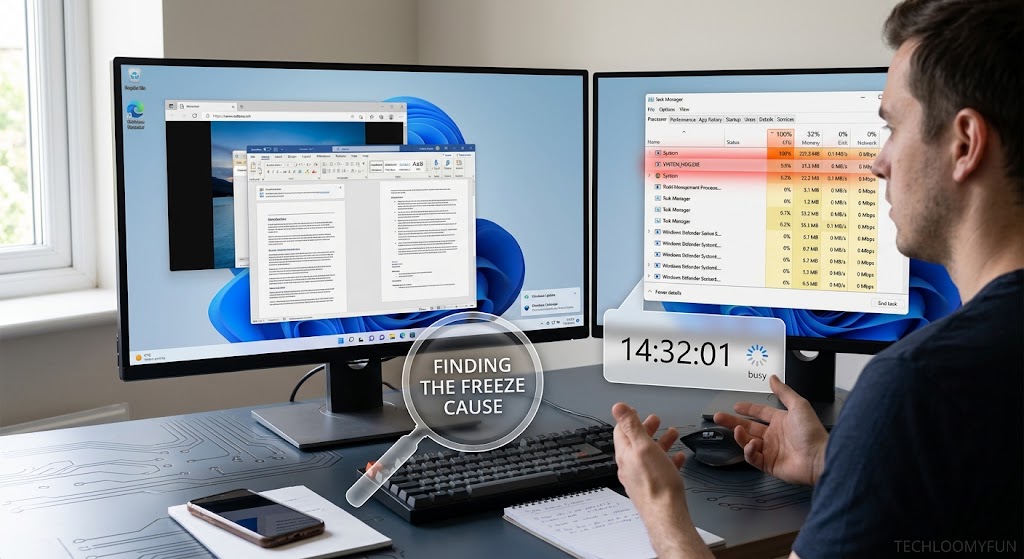
A Windows computer that freezes for three or five seconds and then suddenly works normally again can be surprisingly difficult to troubleshoot. There may be no error message, no blue screen, and nothing obvious to close.
The important clue is the short duration. If the computer becomes unresponsive, recovers, and then repeats the problem later, something may be temporarily consuming CPU, memory, disk resources, or interfering with another Windows process.
The program causing the problem is not always the application you can see on the screen. It could be a background application, startup program, third-party service, synchronization tool, security software, storage-related process, or another component running behind the scenes.
Windows already includes several tools that can help you narrow this down. Task Manager can show active processes and resource usage, while Resource Monitor provides more detailed information. Event Viewer can also help connect a freeze with an event recorded around the same time.
The goal is not to randomly disable programs until the computer feels better. It is to identify a pattern and isolate the program responsible.
First, Confirm That a Program Is Actually Causing the Freeze
Before changing anything, pay attention to what happens when the computer freezes.
Does the mouse still move?
Can you open Task Manager?
Does audio continue playing?
Does the entire desktop stop responding?
Does the problem happen only when opening a particular application?
Does it happen every few minutes even when you are not doing anything?
These details matter.
If only one application stops responding while the rest of Windows remains usable, the application itself may be the problem. If the entire computer pauses for several seconds, you should also investigate disk activity, memory pressure, drivers, background services, and hardware.
A freeze that happens immediately after opening a specific program points in a different direction from a freeze that happens randomly while the computer is sitting idle.
Start With Task Manager During the Freeze
The easiest place to begin is Task Manager.
Press Ctrl + Shift + Esc to open it. Microsoft identifies Task Manager as a built-in tool for viewing running processes and monitoring CPU, memory, disk, and network activity.
Open the Processes section and watch the CPU, Memory, Disk, and Network columns.
You are looking for something that changes dramatically when the freeze occurs.
For example, if CPU usage suddenly becomes very high and one application jumps to the top, that application becomes a strong suspect.
If Disk usage reaches a very high level while the computer becomes unresponsive, look for the process responsible for the disk activity.
If Memory usage is already high before the freeze, an application consuming large amounts of memory may be contributing to the problem.
Do not assume that the process at the top is automatically guilty. Windows processes can temporarily use resources for legitimate reasons. You are looking for a repeatable connection between the process and the freeze.
What to Watch in Task Manager
Try to observe these four areas:
CPU: A process repeatedly creating large CPU spikes may be worth investigating.
Memory: A program that steadily consumes more memory over time can become suspicious, especially if the computer becomes less responsive as the session continues.
Disk: Short freezes accompanied by heavy disk activity can point toward a program reading, writing, scanning, syncing, indexing, or otherwise accessing storage.
Network: A background application performing synchronization or downloads may create temporary activity, although network usage alone does not prove that it is responsible.
Microsoft also recommends using Task Manager’s Processes, Performance, and Startup areas when investigating processes that use significant system resources.
Don’t Immediately End the Process
It can be tempting to see a suspicious process and immediately select End task.
That is useful as a temporary test in some cases, but it is not a diagnosis.
If ending the program makes the freezes disappear, you have learned something useful. However, you still need to determine why that program was causing the problem.
You also need to be careful with Windows processes. Ending an important system process can close applications, interrupt Windows functions, or cause instability.
If you do not recognize a process, research its exact name before disabling or removing anything.
Use Resource Monitor When Task Manager Is Not Enough
Task Manager is excellent for spotting broad resource problems, but Resource Monitor can provide a closer look.
Press the Windows key and search for:
Resource Monitor
You can also open it by entering resmon.
Microsoft documentation describes Resource Monitor as one of the built-in Windows tools for examining resource usage. It can help you look more closely at CPU activity and individual processes.
Open the CPU tab and watch the processes while you wait for the next freeze.
Sort the CPU information so that the busiest processes are easier to see.
Then check whether the same process repeatedly becomes active when the computer pauses.
Resource Monitor is particularly useful when Task Manager shows a general spike but does not make the cause obvious.
Check Whether the Disk Is Causing the Pause
Some short freezes are not really CPU problems.
Your processor may be sitting at a moderate usage level while the storage drive is extremely busy.
This can happen when a program performs a large amount of file activity. Examples can include backup tools, synchronization programs, installers, antivirus scans, indexing activity, or applications processing large files.
When the freeze occurs, look at the Disk information in Task Manager and Resource Monitor.
If disk activity rises at the exact moment the system becomes unresponsive, note which process is associated with that activity.
Do not automatically disable Windows services simply because they appear during the spike. First establish whether the activity is actually unusual and whether it consistently matches the freeze.
Check the Startup Apps
A program that starts automatically with Windows may be responsible even if you rarely open it yourself.
In Windows, open Settings > Apps > Startup, or open Task Manager and select Startup apps.
Microsoft says Task Manager can show startup applications and their startup impact, while Windows Settings also provides controls for whether registered applications launch automatically.
Look for applications such as:
- Cloud synchronization tools
- Hardware utilities
- Update managers
- Printer software
- Game launchers
- Third-party security tools
- Manufacturer utilities
- Messaging applications
- Backup software
This does not mean these types of programs are bad. Many are useful.
The point is to identify software that starts automatically and could be performing background work.
If you recognize a nonessential startup program as a strong suspect, disabling its startup behavior is generally a better diagnostic step than uninstalling it immediately.
Restart Windows afterward and see whether the freezing pattern changes.
Use Event Viewer to Look Around the Time of the Freeze
If the freeze keeps happening but Task Manager does not reveal an obvious culprit, check Event Viewer.
Search Windows for Event Viewer.
Microsoft describes Event Viewer as a Windows tool that records system, security, and application events. It can show the source, time, event level, and related information for recorded events.
The timing is important.
Suppose your computer freezes at 10:42:15 and becomes responsive again at 10:42:19.
Look for errors or warnings recorded around that period.
Pay particular attention to repeated events that occur every time the freeze happens.
One isolated warning does not necessarily explain the problem. Windows can record many routine events, and some errors may be unrelated to your symptoms.
You are looking for a pattern.
If the same application, service, driver, or Windows component repeatedly appears immediately around the freezes, investigate that component further.
Try Reliability Monitor for a Simpler Timeline
Reliability Monitor can also be useful when the problem is intermittent.
Windows includes Reliability Monitor through the perfmon command. Microsoft documents the /rel option as a way to start Reliability Monitor.
Press the Windows key and search for Reliability Monitor.
Look at the dates and times when Windows reports application failures, hardware-related problems, or other reliability events.
This can be easier to understand than scrolling through large Event Viewer logs.
For example, if you notice that an application has repeatedly failed on the same days and your freezing began around the same period, that gives you a useful lead.
Again, correlation is not proof. Use the information to decide what to test next.
If the Freeze Is Random, Perform a Clean Boot
This is one of the most useful tests when you suspect a background program or third-party service but cannot identify which one.
Microsoft’s clean boot procedure starts Windows with essential drivers and startup programs while reducing interference from background software. It is specifically intended to help isolate software conflicts.
Search for:
System Configuration
or type:
msconfig
Open the Services tab.
Before disabling services, select Hide all Microsoft services. This is important because you do not want to casually disable core Microsoft services while testing third-party software.
Microsoft’s documented procedure then allows you to disable the remaining services and startup items, restart Windows, and test whether the problem continues.
If the freezes disappear during a clean boot, that is strong evidence that a startup application or non-Microsoft service is involved.
If the freezes continue, the cause may lie elsewhere.
Don’t Enable Everything Again at Once
If a clean boot makes the problem disappear, you still have another job: finding the exact offender.
Do not simply enable every service again and hope the problem stays away.
Microsoft recommends a systematic process. You can enable groups of services, restart, and check whether the problem returns. Testing groups rather than one item at a time can reduce the number of restarts required.
For example, if you have many third-party services, test roughly half of them.
If the freeze returns, the problematic item is probably within that group.
If the freeze does not return, test another group.
Continue narrowing the group until you identify the specific service.
The same approach can be used with startup applications.
This method takes patience, but it is much more reliable than randomly disabling programs.
What If the Suspected Program Is a Normal Windows Process?
Sometimes Task Manager points toward something with a name such as a Windows service or system component rather than an obvious application.
Do not immediately assume Windows itself is broken.
A Windows process can be performing work because another application requested it.
For example, a background program might trigger file activity, networking, indexing, synchronization, or another Windows service.
That is why the process name alone is not enough.
Look at what happens immediately before and during the freeze. Check Event Viewer, Resource Monitor, startup applications, and clean-boot results before deciding that a core Windows process needs to be changed.
What If the Freeze Continues in a Clean Boot?
If the computer still freezes when third-party startup programs and services are isolated, stop focusing only on ordinary applications.
At this point, investigate other possibilities.
The problem could involve:
A device driver: Graphics, storage, chipset, network, or other drivers can affect system responsiveness.
Storage problems: A struggling or failing drive can create pauses that look like software freezes.
Memory problems: Faulty or unstable RAM can cause freezes, crashes, or unpredictable behavior.
Windows system problems: Corrupted or damaged system components can also cause unusual behavior.
Hardware overheating: Thermal problems can produce performance changes and instability.
A Windows update or driver change: If the freezes began immediately after a major change, the timing is worth investigating.
Microsoft’s Windows recovery guidance recommends starting with the least disruptive recovery option and moving to stronger recovery measures only when necessary. It also warns that some recovery options can result in data loss, so important files should be backed up first.
Check Safe Mode If You Suspect Drivers or Background Software
Safe Mode starts Windows with a limited set of files and drivers.
Microsoft notes that if a problem does not occur in Safe Mode, this helps eliminate default settings and basic device drivers as likely causes and can narrow the troubleshooting process.
If the computer freezes normally but behaves correctly in Safe Mode, that is useful evidence.
It does not identify the exact program by itself, but it tells you that something loaded during normal Windows operation deserves closer attention.
You can then return to normal Windows and continue testing startup applications, services, drivers, and other components.
Repair the Program Instead of Immediately Reinstalling Windows
If you identify a particular application as the likely culprit, check whether it has an update available.
If it is a Windows application that provides a repair option, Windows may allow you to repair it without completely reinstalling it.
In Windows 11, Microsoft documents the path Settings > Apps > Installed apps, where some applications provide Advanced options > Repair. Not every desktop program offers this feature.
For traditional desktop software, check the software manufacturer’s update and repair instructions.
If the problem began after a recent update, also check whether the developer has acknowledged a known problem.
What Not to Do While Troubleshooting
Avoid downloading random “PC optimizer” or “registry cleaner” programs just because your computer freezes.
They can add another variable to an already difficult problem.
Do not start deleting files from Windows system folders.
Do not randomly disable Windows services.
Do not edit the Registry simply because an internet guide says a particular setting will “fix” freezing.
And do not factory-reset Windows as your first response.
A reset can remove applications and settings, and some recovery options can lead to data loss. Back up important files before considering destructive recovery steps.
The objective is to identify the cause first.
A Simple Decision Path
If you want the shortest practical troubleshooting route, use this order.
The whole computer freezes for a few seconds:
Open Task Manager and watch CPU, Memory, Disk, and Network during the next freeze.
One process repeatedly spikes:
Research that process and test the associated application or service.
Disk activity spikes:
Use Resource Monitor to identify the process performing the storage activity.
The process is a startup application:
Disable its startup behavior and test again.
You cannot identify the program:
Check Event Viewer and Reliability Monitor around the exact time of the freeze.
The problem happens randomly:
Perform a clean boot and systematically re-enable third-party services and startup programs.
The freeze continues in a clean boot:
Investigate drivers, storage, RAM, Windows components, and hardware rather than assuming an ordinary program is responsible.
This progression prevents you from making several unrelated changes at once.
When You Should Stop Troubleshooting Yourself
If the computer is freezing more frequently, crashing, showing blue screens, producing unusual drive noises, losing files, or failing to boot normally, stop treating the issue as a simple application problem.
Back up important files while the computer is still usable.
If you suspect hardware failure, contact the computer manufacturer’s support service or a qualified technician.
If the problem began after a specific driver, Windows update, or application installation, the relevant manufacturer’s support documentation may be more useful than generic troubleshooting advice.
Windows also includes recovery tools for more serious problems, but Microsoft’s guidance recommends starting with less disruptive options before moving to stronger recovery procedures.
Frequently Asked Questions
Why does my Windows PC freeze for only a few seconds?
A short freeze can have several causes, including a process temporarily consuming CPU, memory, or disk resources, background software, a driver, storage activity, or another system component. The timing and resource usage during the freeze are more useful than simply guessing from the symptom.
How can I find which program is freezing Windows?
Start with Task Manager and watch CPU, Memory, Disk, and Network usage during the freeze. If that does not reveal the cause, use Resource Monitor and Event Viewer. If the problem remains difficult to isolate, a Windows clean boot can help determine whether a third-party startup program or service is responsible.
Should I disable all startup programs?
Not permanently. Disabling startup applications can be useful as a temporary troubleshooting test, but you should keep track of what you change and restore normal startup after identifying the cause.
Is Event Viewer enough to find the problem?
Not always. Event Viewer can provide useful timing and error information, but Windows records many events that are unrelated to the freeze. Use it together with Task Manager, Resource Monitor, Reliability Monitor, and clean-boot testing.
What if Windows still freezes after a clean boot?
If the problem continues in a clean boot, a normal third-party startup program or service becomes less likely. Investigate drivers, storage, memory, Windows system problems, and hardware. If the computer is becoming unstable or losing data, back up important files and consider professional or manufacturer support.
Authoritative Sources
For readers who want official documentation, these Microsoft resources are useful:
- Microsoft Support: How to perform a clean boot in Windows
- Microsoft Support: System configuration tools in Windows
- Microsoft Support: Configure startup applications in Windows
- Microsoft Support: Recovery options in Windows
- Microsoft Learn: Optimizing Performance and Responsiveness
Conclusion
Finding a Windows program that causes brief freezes is mostly an exercise in observation.
Start by watching Task Manager when the freeze happens. If the answer is not obvious, move to Resource Monitor and check whether CPU, memory, disk, or another resource changes at the same time. Event Viewer and Reliability Monitor can provide useful timing clues.
When the problem remains hidden, a clean boot is one of the most effective ways to separate Windows itself from third-party software. If the freezing disappears, systematically re-enable services and startup applications until the culprit is isolated.
If the freeze continues even after third-party software has been isolated, stop assuming that an ordinary Windows program is responsible. At that point, drivers, storage, memory, system files, or hardware deserve attention.
The biggest mistake is changing ten things at once. Make one controlled change, reproduce the problem, and use the result to decide what to test next.